Showing posts with label 2013. Show all posts
Showing posts with label 2013. Show all posts
Monday, September 26, 2016
Microsoft Outlook 2013 error message Cannot open the Outlook window The set of folders cannot be opened The information store could not be opened
Microsoft Outlook 2013 error message Cannot open the Outlook window The set of folders cannot be opened The information store could not be opened
Check Outlook compatibility mode:
Open: C/Program Files/Microsoft Office/Office 15/Outlook.exe.
64 bit system: C:/Program Files x86/Microsoft Office/Office 15/Outlook.exe.
Right click on Outlook.exe and click on Properties and then click on Compatibility tab.
Check if you have any check mark in any of the compatibility mode options.
Make sure you also click on the option "change settings for all users" tab at the bottom of the same screen and look for similar check boxes in the window.
If you see any check boxes in the compatibility mode options, uncheck all the boxes.
Apply
OK.
Try to open Outlook and check the result.
Source and other solutions: answers.microsoft.com
Available link for download

Wednesday, September 21, 2016
Microsoft Office Picture Manager vs Office 2013
Microsoft Office Picture Manager vs Office 2013
Microsoft Office Picture Manager is no part of Office 2013 anymore.
If you need this software, you have to download the free Microsoft Office SharePoint Designer 2010 (Frontpage) program, then install it..
Download Microsoft Office SharePoint Designer 2010 (32-bit)
Download Microsoft Office SharePoint Designer 2010 (64-bit)
When you disable these components, choose "Install now".
Thats it.
Source: askvg.com


Available link for download
Friday, September 9, 2016
Download Office 2010 2013 Professional Plus Language Packs
Download Office 2010 2013 Professional Plus Language Packs
Office 2010 / 2013 Professional Plus Language Packs download links:
Office 2010 Direct Download Links
Office 2013 Direct Download Links
OR:
Office 2010 language packs, proofing tools included
Or see the comment below.
Available link for download
Switching the Skype for Business user interface for users to Lync 2013
Switching the Skype for Business user interface for users to Lync 2013
The following powerShell show how to swith Skype interface
CAUTION The ClientPolicyEnableSkypeUI policy will replace the existing custom policy setting for the user.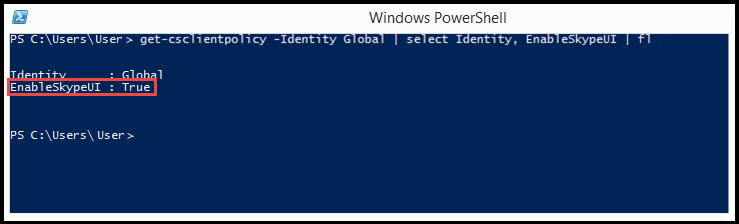
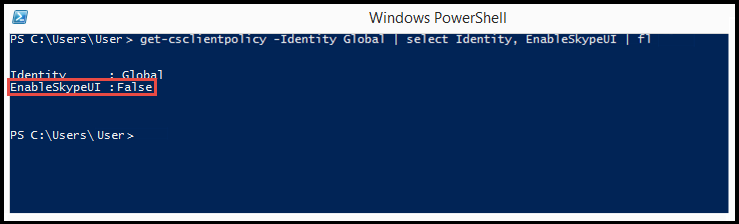


NOTES The users name is the name of the users account that the policy should be assigned to. The users account name can be entered in one of the following formats:
Grant-CsClientPolicy -PolicyName ClientPolicyEnableSkypeUI -Identity <username>
To enable all of the users in your organization to use the Skype for Business client, open the Remote PowerShell and type the following:
Grant-CsClientPolicy -PolicyName ClientPolicyEnableSkypeUI
If you set the policy right, you will see:
To enable all of the users in your organization to use the Skype for Business (Lync) client, open the Remote PowerShell and type the following:
Grant-CsClientPolicy -PolicyName ClientPolicyDisableSkypeUI
If you set the policy right, you will see:
To allow a single user in your organization to use the Skype for Business client, open the Remote PowerShell and type the following:
Grant-CsClientPolicy -PolicyName ClientPolicyEnableSkypeUI -Identity <username>
If you set the policy right, you will see:
To allow a single user in your organization to use the Skype for Business (Lync) client, open the Remote PowerShell and type the following:
Grant-CsClientPolicy -PolicyName ClientPolicyDisableSkypeUI -Identity <username>
If you set the policy right, you will see:
To allow multiple users in your organization to use the Skype for Business client, open the Remote PowerShell and type the following:
$users = @("sip:bob@contoso.com","sip:fred@contoso.com")$users | Grant-CsClientPolicy -PolicyName ClientPolicyEnableSkypeUI
To allow multiple users in your organization to use the Skype for Business (Lync) client, open the Remote PowerShell and type the following:
$users = @("sip:bob@contoso.com","sip:fred@contoso.com")$users | Grant-CsClientPolicy -PolicyName ClientPolicyDisableSkypeUI
To allow a group of users in your organization to use the Skype for Business client, open the Remote PowerShell and type the following:
Get-CsOnlineUser -Filter {Department -eq “Sales”} | Grant-CsClientPolicy -PolicyName ClientPolicyEnableSkypeUITo allow a group of users in your organization to use the Skype for Business (Lync) client, open the Remote PowerShell and type the following:
Get-CsOnlineUser -Filter {Department -eq “Sales”} | Grant-CsClientPolicy -PolicyName ClientPolicyDisableSkypeUI- SIP address of the user
- User Principal name (UPN) of the user
- Domainusername of the user
- Active Directory display name of the user
Available link for download
Tuesday, August 23, 2016
Error message when you try to send or to receive email in Outlook 2010 or Outlook 2013 0x8004010F Outlook data file cannot be accessed
Error message when you try to send or to receive email in Outlook 2010 or Outlook 2013 0x8004010F Outlook data file cannot be accessed
Error message when you try to send or to receive email in Outlook 2010 or Outlook 2013:
"0x8004010F: Outlook data file cannot be accessed"
Set up again the profile with correct settings.
Set as default.
You must delete demaged profile (email account, e.g.: IMAP).
After that, emails from "Outbox" folder will be sent out automatically.
Source: Microsoft
Available link for download
Monday, August 8, 2016
E mail messages stuck in Outbox Outlook 2010 2013 vs Norton Internet Security
E mail messages stuck in Outbox Outlook 2010 2013 vs Norton Internet Security
Regular solutions for "messages stuck in Outbox" problem at Microsoft:
How to troubleshoot e-mail messages that are stuck in your Outbox
But if you use a complex antivirus software, e.g. Norton Internet Security, turn off scanning of outgoing messages:
Settings
Network
Message Protection
Available link for download
Subscribe to:
Posts (Atom)