Showing posts with label users. Show all posts
Showing posts with label users. Show all posts
Monday, September 12, 2016
10 Tips And Tricks That All Windows Users Would Love To Know
10 Tips And Tricks That All Windows Users Would Love To Know

Making Shortcut for Running your Favorite Programs:
If you think that doubling tapping the programs icon is worthless and time wastage then this is the best trick for you to open programs fast and easy. Right click on the program icon and then go to properties. There go to the shortcut tab and click on the Shortcut line. It will show you “none”. Press any desired key you like to assign for the launching of that program. After that the line will generate the shortcut starting with “Ctrl + Alt + your desired key. Click Apply and you are ready to launch that program just from your desktop.
Search It Directly from the Taskbar:
Want to make it easier for viewing links. Well, this trick will definitely come in handy. Right click the taskbar and select properties, in the toolbars section select the things you would like on your taskbar and check the Address box, click Apply. Now you can search any link directly from the taskbar in your default browser. Just type a link and the search result will show up in a window in the default browser.
Must Read: Useful Notepad Tricks For Windows 2015
Toggle between running Programs on the Desktop:
I think this won’t be new to many people as this functions is inherited from Windows XP. But its still there in 7 and 8.1. Just press alt button on the keyboard and start press in TAB key, a box showing the running programs will appear. Now you can easily toggle between programs, without touching the taskbar.
Increase no, of items in the jump lists:
Want to have a lot of recents in your jump list. Goto Taskbar properties> jump lists. Here just select the number of recent items you want and just click apply.
Search More Effectively:
Most of windows 8 users might miss the 7 and XP style of searching. But 8.1 might surprise you with its more effective search trick. Just click the search tab in the top right corner of the Windows Explorer. After clicking it search tools will appear in the top left section in the menu bar just besides the view option. Now you can search with many fancy filters this will definitely make your search more effective. And it’s much better than the previous search tools given in previous versions of windows.
Must Read: How To Paste Any Code or Command In Cmd By Using CTRL+V
Aero Snap:
Now this maybe a very little aspect but a very useful one for multitasking users. You can easily size two windows with just one drag or by one or two commands on the key board. Just drag in any window to the left or right of the screen and it will cover exactly the half of that side of screen and you can do the same for the rest of the screen. Want to use key board then open the window and press windows key + right arrow for the right side and left arrow key for the left side.
Make the most from Right Click Options:
Usually when you right click a folder or item it will give you many options and also the sendto options gives you some options to. But what if I tell you that you can increase the right click options as well as the sendto options. Just press and hold the sift key and then press the right click the item and you’ll see many options in the right click menu as well as the sendto menu will also give you many locations.
File Path copying:
Want to copy a file path of a certain item. Just hold down the shift key and right click that item and click on the copy as path option. Now, your file path is copied to clip board. For example, if you want to tell how to get to that folders location or just want to upload to an online source just paste the path and make your life easy.
Launch Taskbar Programs Directly From The Keyboard:
Fed up of clicking the taskbar programs. Well, here’s a new trick that will surely help you. To launch any program directly from the taskbar, just press the Windows key + the number on which it is present on the taskbar. For instance, in the picture here I would like to open Mozilla. So, I will press Windows Key + 5 key and Mozilla will launch. Neat isn’t it.
Must Read: How To Use Android Apps On PC?
New Window launching:
Want to launch another window of a running program. Let’s say for Mozilla you want to open a new window. Just hold down the shift key and either click the program that is opened previously or press shift + Windows key + the no. of tab on the taskbar and there you go a new tab. Its sure to save your time.
Available link for download

Friday, September 9, 2016
Switching the Skype for Business user interface for users to Lync 2013
Switching the Skype for Business user interface for users to Lync 2013
The following powerShell show how to swith Skype interface
CAUTION The ClientPolicyEnableSkypeUI policy will replace the existing custom policy setting for the user.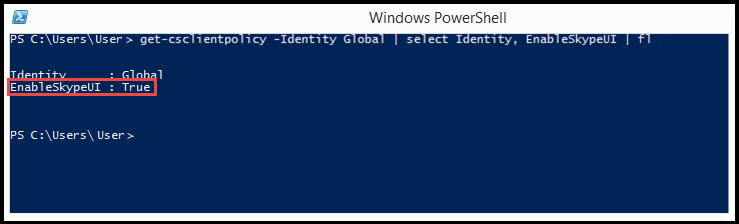
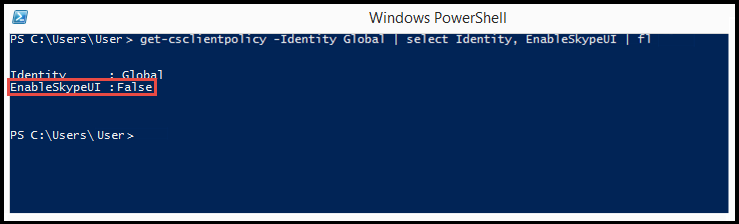


NOTES The users name is the name of the users account that the policy should be assigned to. The users account name can be entered in one of the following formats:
Grant-CsClientPolicy -PolicyName ClientPolicyEnableSkypeUI -Identity <username>
To enable all of the users in your organization to use the Skype for Business client, open the Remote PowerShell and type the following:
Grant-CsClientPolicy -PolicyName ClientPolicyEnableSkypeUI
If you set the policy right, you will see:
To enable all of the users in your organization to use the Skype for Business (Lync) client, open the Remote PowerShell and type the following:
Grant-CsClientPolicy -PolicyName ClientPolicyDisableSkypeUI
If you set the policy right, you will see:
To allow a single user in your organization to use the Skype for Business client, open the Remote PowerShell and type the following:
Grant-CsClientPolicy -PolicyName ClientPolicyEnableSkypeUI -Identity <username>
If you set the policy right, you will see:
To allow a single user in your organization to use the Skype for Business (Lync) client, open the Remote PowerShell and type the following:
Grant-CsClientPolicy -PolicyName ClientPolicyDisableSkypeUI -Identity <username>
If you set the policy right, you will see:
To allow multiple users in your organization to use the Skype for Business client, open the Remote PowerShell and type the following:
$users = @("sip:bob@contoso.com","sip:fred@contoso.com")$users | Grant-CsClientPolicy -PolicyName ClientPolicyEnableSkypeUI
To allow multiple users in your organization to use the Skype for Business (Lync) client, open the Remote PowerShell and type the following:
$users = @("sip:bob@contoso.com","sip:fred@contoso.com")$users | Grant-CsClientPolicy -PolicyName ClientPolicyDisableSkypeUI
To allow a group of users in your organization to use the Skype for Business client, open the Remote PowerShell and type the following:
Get-CsOnlineUser -Filter {Department -eq “Sales”} | Grant-CsClientPolicy -PolicyName ClientPolicyEnableSkypeUITo allow a group of users in your organization to use the Skype for Business (Lync) client, open the Remote PowerShell and type the following:
Get-CsOnlineUser -Filter {Department -eq “Sales”} | Grant-CsClientPolicy -PolicyName ClientPolicyDisableSkypeUI- SIP address of the user
- User Principal name (UPN) of the user
- Domainusername of the user
- Active Directory display name of the user
Available link for download
Wednesday, August 24, 2016
Auto sign in Skype for Business users
Auto sign in Skype for Business users
Beberapa waktu yang lalu saya mencari sebuat informasi agar otomatis Sign-in Lync/Skype pada user Business, dalam kasus saya menggunakan Office 2013, banyak sekali saya menemukan sumber-sumber informasi tapi belum ada satupun yang dapat mengabulkan keingin saya untuk sign-in user bussiness.
Masalahnya adalah ketika anda sign-in untuk contoh pada Office 2013 dengan Skype, Klien bisnis pada Skype akan otomatis mulai tapi ini akan langsung bertanya UPN (User Principal Name),untuk bisa masuk, seperti pada gambar dibawah ini. Dalam kasus saya ini tidak user-friendly jadi kami harus menyelesaikan masalah ini.

Saya menemukan cara dengan pasangan dari kunci registri dengan alat sysinternals procmon.exe dan menbuat file registry untuk di import. Masalah telah membuat beberapa tombol yang diperlukan UPN, jadi masalah ini berakhir dengan script PowerShell.
Catatan! Script ini benar-benar tanpa kontrol error, dan mungkin atau mungkin tidak bekerja di lingkungan Anda, itu tergantung pada setup dan konfigurasi. Hal ini terutama ditulis untuk Office 365 dan layanan tidak di-prem.
Pokoknya ini adalah script yang kita digunakan dan disebarkan kepada pengguna, dan script secara otomatis mengadopsi untuk lingkungan Anda tanpa perubahan.
Happy Skype deployment, please comment if this works or not for you!
Masalahnya adalah ketika anda sign-in untuk contoh pada Office 2013 dengan Skype, Klien bisnis pada Skype akan otomatis mulai tapi ini akan langsung bertanya UPN (User Principal Name),untuk bisa masuk, seperti pada gambar dibawah ini. Dalam kasus saya ini tidak user-friendly jadi kami harus menyelesaikan masalah ini.
Saya menemukan cara dengan pasangan dari kunci registri dengan alat sysinternals procmon.exe dan menbuat file registry untuk di import. Masalah telah membuat beberapa tombol yang diperlukan UPN, jadi masalah ini berakhir dengan script PowerShell.
Catatan! Script ini benar-benar tanpa kontrol error, dan mungkin atau mungkin tidak bekerja di lingkungan Anda, itu tergantung pada setup dan konfigurasi. Hal ini terutama ditulis untuk Office 365 dan layanan tidak di-prem.
Pokoknya ini adalah script yang kita digunakan dan disebarkan kepada pengguna, dan script secara otomatis mengadopsi untuk lingkungan Anda tanpa perubahan.
#Get the current domain
$domain = [System.DirectoryServices.ActiveDirectory.Domain]::GetCurrentDomain()
$domain = “DC=$($domain.Name.Replace(‘.’,’,DC=’))”
#Get the current username and SID
$CurrentUsername = $env:USERNAME
$CurrentUserSid = [System.Security.Principal.WindowsIdentity]::GetCurrent().User.Value
#Time to connect to a domain controller and perform a ldap search with either current username or SID
#Only one object will be returned
$Searcher = New-Object DirectoryServices.DirectorySearcher
$Searcher.Filter = “(&(objectCategory=person)(objectSid=$($CurrentUserSid)))”
#$Searcher.Filter = “(&(objectCategory=person)(cn=$($CurrentUsername)))”
$Searcher.SearchRoot = “LDAP://$($domain)”
$User = $Searcher.FindOne()
$CurrentUpn = ([ADSI]$User.Path).userPrincipalName
If ($(Test-Path -Path “HKCU:SoftwareMicrosoftOffice15.0Lync”) -eq $False) { New-Item “HKCU:SoftwareMicrosoftOffice15.0Lync” }
New-ItemProperty “HKCU:SoftwareMicrosoftOffice15.0Lync” -Name “FirstRun” -Value 1 -PropertyType “DWord” -Force
New-ItemProperty “HKCU:SoftwareMicrosoftOffice15.0Lync” -Name “SavePassword” -Value 1 -PropertyType “DWord” -Force
New-ItemProperty “HKCU:SoftwareMicrosoftOffice15.0Lync” -Name “ServerSipUri” -Value $CurrentUpn -PropertyType “String” -Force
New-ItemProperty “HKCU:SoftwareMicrosoftOffice15.0Lync” -Name “ServerUsername” -Value $CurrentUpn -PropertyType “String” -Force
New-ItemProperty “HKCU:SoftwareMicrosoftOffice15.0Lync” -Name “IsBasicTutorialSeenByUser” -Value 1 -PropertyType “DWord” -Force
Happy Skype deployment, please comment if this works or not for you!
Available link for download
Subscribe to:
Posts (Atom)