Showing posts with label click. Show all posts
Showing posts with label click. Show all posts
Tuesday, September 27, 2016
How to Fix Device Driver Problems with One Click
How to Fix Device Driver Problems with One Click
Sometimes, your computer just can’t work properly and you even don’t know what is wrong with it. In most cases, it is the problem of hardware drivers that makes your computer not working. Though Windows 7 and Windows 8 has inbuilt driver support for many hardware devices, there is still a big chance that the inbuilt support can’t troubleshoot the problem. You need a more powerful fix for it.
Common Fixes for Driver Problems We Have Learnt Before
Since driver problem is a common problem on computers, we can get various solutions for it by searching on google. The general fixes are listed in the below:
1. Windows Hardware Troubleshooter
The first thing to try is to use the Windows automatic hardware troubleshooter. Open it as follows:
Start > Enter “fix hardware” in the search box > Choose “Find and fix problems with devices” from the search results.
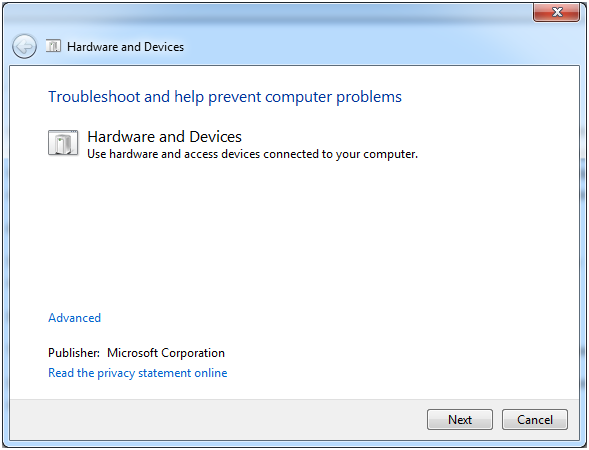
It should be a Window like in the picture. Then Next, it will start detecting problems and check for missing and corrupted drivers.
All installed devices will be searched through and if there is something wrong detected with this troubleshooter, it will offer a choice to “Apply this fix” or “Skip this fix”. This is a great fix if it works!?However, if it does not work, read on.
2. Update Drivers
The method most commonly suggested and used is to update the driver for your hardware that is not working. There are 3 methods introduced to update your drivers: through Windows Update, Download from manufacture’s website and install it yourself, through free software DriveTheLife.
However, you can also do the driver update by this direct video tutorial of how to update drivers on Windows 8/7/XP/Vista with One Click for Free.
3. Fresh Install of Windows
If the problem is so stubborn that we can’t solve it with the above two methods, maybe someone would pick the worst but 100% efficient method: do a clean install of Windows system. That is OK but not suggested here because I just want to introduce you the one-click way.
What is the One-click Way of Troubleshooting Driver Problems?
You may think that it is impossible to fix driver problems with just one click. But this is true to DriveTheLife, a free and professional driver updater and manager. Just do as follows and download it to use for proof.
- Download free DriveTheLife from official website: http://www.drivethelife.com
- Install it just like any other software
- When install is done, launch it. It will start the automatic scanning without any advanced configurations
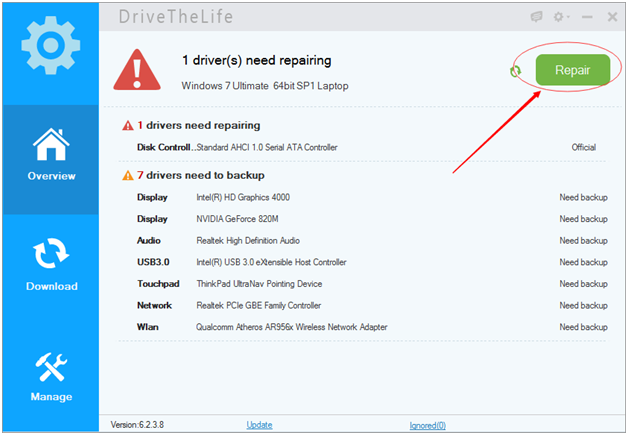
- If there is something wrong with your hardware device drivers, like driver is missing, corrupted/broken, it will identify the problematic driver(s) and offer an option “Repair”. Click Repair, all the problematic drivers will be fixed!
Available link for download

Saturday, August 6, 2016
One click Download Update and Fix Windows Drivers Free for Limited Time
One click Download Update and Fix Windows Drivers Free for Limited Time
First of all, Id like to make a statement of the brand and software name change. The brand Drive The Life has been changed into OSToto and all the utilities are under the brand name OSToto. The flagship software DriveTheLife has updated to a new version with an all-new look and the new name Driver Talent. Accordingly, the complementary software DriveTheLife for Network Card has been changed into Driver Talent for Network Card.
And another big news is that we offer free Driver Talent and Driver Talent for Network Card for limited time. When the free time is ended, you need to pay a little money in order to use the full version of Driver Talent and access full features. The most important is that if you download and activate Driver Talent full version before the end of free time, you will enjoy a lifetime free Driver Talent full version and lifetime free updates. Dont forget to share the big and good news with your friends. Learn more details from official site: http://www.drivethelife.com/
Key Features of Driver Talent
Driver Talent is a professional and easy-to-use driver downloader, updater and manager for Windows hardware. It will run through your computer and scan all drivers status in demand. After the scan and analysis, it will identify your outdated, malfunctioning and not backed up drivers. You can download, update, fix and backup drivers by clicking corresponding buttons with ease.
Key features are summarized as below:
- Scan driver status
- Fix malfunctioning (missing or corrupted) drivers
- Find and update up-to-date drivers in Latest driver mode
- Backup drivers for future restore
- Restore drivers from backup to repair issues
- Uninstall unwanted and unused drivers completely
- Repair, install and update drives for all USB-connected (peripheral) drivers
- Check for hardware information and CPU/memory usage in one place
- Several versions are available for every driver so that you can freely choose which to install
- 100% Compatible with Windows 10, 8.1, 8, 7, Windows XP, Vista and Windows Server
Note that you are free to download, update and backup drivers. And you need to activate to the full version to restore, uninstall, add network printers, use Latest driver mode and access more features. The code will be sent to you for free till the free time ends.
The software Driver Talent for Network Card is specially designed to fix network drivers and is especially helpful when you have no internet connection because it is integrated with a network driver library inside which allows you to install network drivers offline.
How to Use Driver Talent to Download, Update and Fix Drivers?
Driver Talent is a quite easy tool that everyone can operate it without difficulty. Below I will list a simple steps of using Driver Talent and something that need to be clarified while using Driver Talent.
Before starting, download Driver Talent from official site (You can always download the latest version from official site). Install and start the program. Then follow the steps in the below:
Step 1: Scan driver status
Before entering the main interface, there are an entry of scanning drivers update or going to tools, peripheral drivers and hardware profile section.

Note that generally we will click Scan to check for driver updates or fix driver problems at first. But if you want to skip the scan and directly access the Tools section (including backup, restore and uninstall drivers), the Peripheral devices driver section, or just want to check for the Hardware profile information, you can click the corresponding buttons in the bottom row.
Step 2: After the scan, update or fix the drivers
When scan is done, it will list the drivers that need to be repaired. If there is no driver needs to be repaired, it will list the updateable drivers. If all are perfect, it will say that Congratulations! All drivers are perfect!"
If you need to update or fix drivers, just click the Start button and Driver Talent will do all for you.

Step 3: Backup, restore and uninstall drivers
All the 3 features are included in the Tools section. Just go to corresponding section to backup, restore or uninstall drivers.

Note that you need to activate Driver Talent to full version for the features of Restore and Uninstall drivers. The code is free sent till the free time ends.
Step 4: Update, repair or install drivers for peripheral devices (USB-connected)
The Peripheral Drivers section is specially designed for USB-connected devices. It will detect all connected USB devices on your computer. If there any devices that are not detected, click the Repair button. You can even add network printers from this section. But you need to activate to access this feature.

Step 5: Check for hardware information
Here in the Hardware Profile section, all your hardware information and CPU, memory usage are listed. You can also export it as txt document for references.

Other Things That Need Your Notice
1. You can customize all the utilitys settings be clicking Settings in the left main menu or the top right menu. Here you can specify how Driver Talent are launched, closed. You can add your own language file so that you can use Driver Talent as your native software. You can also specify the folders to save downloaded and backed up drivers. Customize network or proxy while using Driver Talent.

2. Driver Talent is activated right after you enter your email address and click Done. You dont need to type in the code in anywhere by yourself. However, you need to keep the key for future use when you uninstall old version Driver Talent and reinstall the new version.


Available link for download
Subscribe to:
Posts (Atom)