Showing posts with label fix. Show all posts
Showing posts with label fix. Show all posts
Tuesday, September 27, 2016
How to Fix Windows 10 Cumulative Update KB3081455 fails Installation Issues
How to Fix Windows 10 Cumulative Update KB3081455 fails Installation Issues

There is simple command to fix today’s broken windows update
So if you have KB3081455 installation issues or other windows update fails try the command bleow
sfc /scannow
To excute this command you should open a Command Prompt window (CMD) with administrator privileges , as explained here
Available link for download

How to Fix Device Driver Problems with One Click
How to Fix Device Driver Problems with One Click
Sometimes, your computer just can’t work properly and you even don’t know what is wrong with it. In most cases, it is the problem of hardware drivers that makes your computer not working. Though Windows 7 and Windows 8 has inbuilt driver support for many hardware devices, there is still a big chance that the inbuilt support can’t troubleshoot the problem. You need a more powerful fix for it.
Common Fixes for Driver Problems We Have Learnt Before
Since driver problem is a common problem on computers, we can get various solutions for it by searching on google. The general fixes are listed in the below:
1. Windows Hardware Troubleshooter
The first thing to try is to use the Windows automatic hardware troubleshooter. Open it as follows:
Start > Enter “fix hardware” in the search box > Choose “Find and fix problems with devices” from the search results.
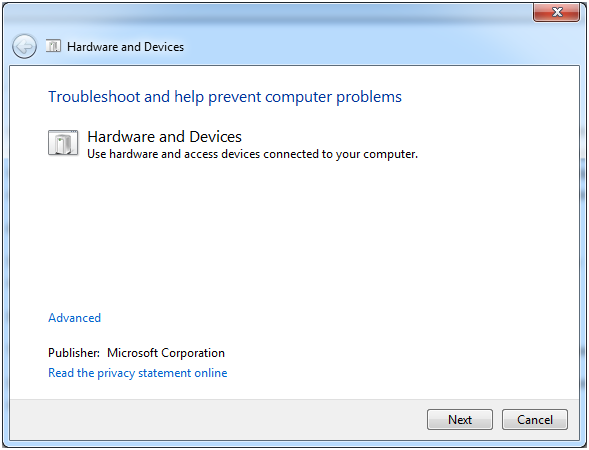
It should be a Window like in the picture. Then Next, it will start detecting problems and check for missing and corrupted drivers.
All installed devices will be searched through and if there is something wrong detected with this troubleshooter, it will offer a choice to “Apply this fix” or “Skip this fix”. This is a great fix if it works!?However, if it does not work, read on.
2. Update Drivers
The method most commonly suggested and used is to update the driver for your hardware that is not working. There are 3 methods introduced to update your drivers: through Windows Update, Download from manufacture’s website and install it yourself, through free software DriveTheLife.
However, you can also do the driver update by this direct video tutorial of how to update drivers on Windows 8/7/XP/Vista with One Click for Free.
3. Fresh Install of Windows
If the problem is so stubborn that we can’t solve it with the above two methods, maybe someone would pick the worst but 100% efficient method: do a clean install of Windows system. That is OK but not suggested here because I just want to introduce you the one-click way.
What is the One-click Way of Troubleshooting Driver Problems?
You may think that it is impossible to fix driver problems with just one click. But this is true to DriveTheLife, a free and professional driver updater and manager. Just do as follows and download it to use for proof.
- Download free DriveTheLife from official website: http://www.drivethelife.com
- Install it just like any other software
- When install is done, launch it. It will start the automatic scanning without any advanced configurations
- If there is something wrong with your hardware device drivers, like driver is missing, corrupted/broken, it will identify the problematic driver(s) and offer an option “Repair”. Click Repair, all the problematic drivers will be fixed!
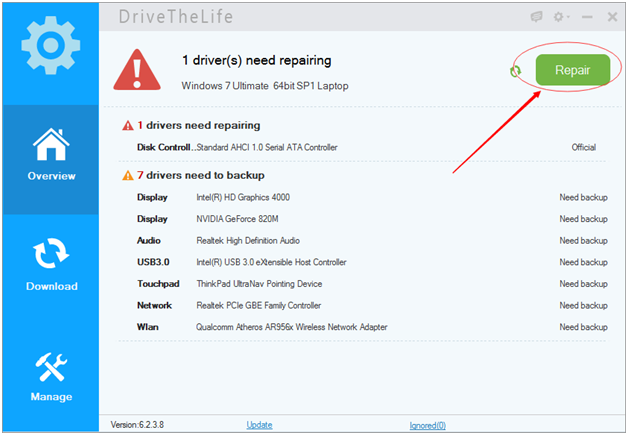
Available link for download
Friday, September 16, 2016
No Sound on Windows Computer – Fix Common Audio Problems
No Sound on Windows Computer – Fix Common Audio Problems
What If There is No Sound on Your Windows Computer?
We always suffer from various computer problems, honestly, we can’t void this. I have demonstrated how to fix “computer can’t connect to WiFi”, and today we will learn how to troubleshoot sound problems on Windows PC.
On the whole, sound problems can be caused by sound card issues, outdated/damaged sound driver, sound settings, cables that are broken or not connected properly, etc. This tutorial doesnt cover all fixes but provides you with some common solutions.
Solution 1: Don’t Ignore the Obvious – Check Volume Settings and Cable Connection
If you are using external speakers, make sure they are connected properly and plugged into a working power and turned on. Many computers have more than 3 jacks, microphone jack, line-in jack, line-out jack. Speakers should be plugged into the line-out jack.

If it is not connected properly, there will be a red X on the taskbar icon.
After checking the cable connection, click the sound icon from the taskbar and open the Volume Mixer. Make sure that the Mute is not enabled and adjust the volume to the right position that you need.
Note that if the sound icon is not shown on the taskbar, you can go to sound settings from: Start menu > Control Panel > Sound.
Solution 2: Use Playing Audio Troubleshooter
Microsoft designed the Playing Audio Troubleshooter to help users when having problems on playing audio. It checks for common problems with your volume settings, sound card or driver, and speakers or headphones. Open Playing Audio troubleshooter through the following path: Start > Control Panel > Troubleshooter > Hardware and Sound > Troubleshoot audio playback.
Note that in order to get the most up-to-date troubleshooters from Windows online, you should make sure that the internet connection is fine on your computer.

Or you can download the audio troubleshooter program to trouble your problems.
Solution 3: Check for Your Sound Card – Update Sound Card Driver If Needed
Sound card or sound processor is a main hardware for computer sound produce. So we need to check whether there is a sound card or sound processor and if it is working properly. Device Manager is a control panel application that allows you to check, set, change hardware devices settings and drivers. So just open Device Manager to check your sound card.
- Start > Input Device Manager > Press Enter.
- Your sound card or processor should be listed under Sound, Video and Game Controller. Click it to expand this category.
Note that if you think you have installed a sound card but it is not listed under this category, please check the Other Devices and see if it there.
- If there is a yellow triangle on the device, there might be a problem. Then right click to view Properties. Check the General tab to read the problem on the Device status box. If there is a problem, you might need to install a new driver or purchase a new sound card.
Click here to learn how to update Windows drivers.
If things didnt get worse, we dont need to kill all other settings and data to do a system restore (Start >Input System Restore > Press Enter)or clean reinstall.
Solution 4: Do a System Restore or a Clean Reinstall of Windows
If things didnt get worse, we dont need to kill all other settings and data to do a system restore (Start >Input System Restore > Press Enter)or clean reinstall.
Tip: To keep drivers up to date and fix driver problems, DriveTheLife is the best free choice. Download it now on your computer as the must-have program.
Available link for download
Wednesday, September 7, 2016
How to Fix Network Adapter Drivers and Make Internet Running
How to Fix Network Adapter Drivers and Make Internet Running
No Driver for Network Adapter. How Do I Get My Internet Running?
"I just installed Windows 8 on my brand new build. Its telling me Im missing network adapter drivers and therefore cannot connect. How do I get the necessary drivers without internet? Seems like a vicious circle. And for those wondering, I posted this from my phone. Im using a hardline for my computer. No WiFi. Help!"
This is really a common problem for those who dont have a driver disc which came with the Windows system. After a clean Windows install/restore, the most ordinary gadget to make computer running is the internet access, then all can be down on the internet. I mean, you can download needed programs, search for needed information, etc.
But as is said in the above, if there is no drivers, you cannot connect to the internet; Without the internet connection, you are unable to download drivers on your computer. What a vicious circle!
How to Fix Network Driver Problems?
We can fix all drivers but network drivers by Windows Update, Device Manager Update or driver finder software through an available internet. But what if there is no internet connection? Lets explore the tricks.
# 1 One way is to make clear which driver you need and download it from manufactures website or other authorized sites using another network-available computer. Save the driver installer (it should be end with zip or exe) on a hard drive and transfer the installer to your computer to install.
# 2 Alternatively, the other easier way is to use an automatic driver finder software DriveTheLife for Network Card, a supplement program of DriveTheLife.
- Download DriveTheLife for Network Card from another network-available computer and save it on a hard drive.
- Transfer the installer to your computer and double click to install it.
- In the process of installing DriveTheLife, it would download and install correct network drivers according to your network adapter.
 |
| Installing DriveTheLife for Network Card |
- When DriveTheLife for Network Card is installed, you may find that your network card is also installed.
- Then it will scan your computer and find missing, corrupted drivers and drivers not backed up. You can fix all the driver problems with one click.
- If you want to update outdated drivers, go to Download board where will list all the out of date drivers and give you the option to update them with one click.
 |
| Download Driver Update |
What is the Advantage of Using DriveTheLife for Network Card Instead of Downloading Drivers Directly?
As we can see from the second part, there are two ways to solve no network driver problem. Which is better and why?
Personally, DriveTheLife for Network Card is recommended. Reasons are:
1. You dont need to look into network adapter model and search for drivers by yourself.
2. Except for installing network drivers, DriveTheLife for Network Card will check for your computer and find all missing, corrupted and outdated drivers.
3. You can backup, restore and uninstall drivers with DriveTheLife for Network Card
4. If needed, you can keep it as a must-have program on your computer to keep your drivers up to date and running normally.
Free download DriveTheLife for Network Card here to troubleshoot all network driver problems.
Available link for download
Sunday, September 4, 2016
Top Ways to Fix Laptop Touchpad Not Working
Top Ways to Fix Laptop Touchpad Not Working
Laptops Touchpad Stops working
"The built-in Synaptic touchpad on my notebook no longer works, making Windows nearly impossible to use. Even the touchpad scrolling not working! I am so disappointed because I dont have a mouse here."
Imagine that without a mouse, touchpad or other pointing device, how can you use a Windows PC? So it is really disappointing when your touchpad suddenly stopped working without a mouse on hand.
This page covers several common fixes to resolve on-functioning touchpad.
How to Troubleshoot Touch Pad Not Working
Method 1. Reboot Your Laptop
The first fix should be painfully obvious - Restart your laptop. If the problem just started, this may be the easiest troubleshooter. We know, anything thats got in a mess gets the chance to start over by computer restart. The OS and the software gets to a new start with a reboot.
Method 2. Update Touchpad Driver
If you got this problem in a Windows upgrade like from Windows 7/8 to Windows 10, the most possible cause is that Windows installed an incorrect driver for your touchpad. If this is the case, dont worry! A simple touchpad driver update will fix it.
To update driver, you have 2 ways.
The 1st Way: Use 3rd party driver downloader and updater tool
Here I recommend free software DriveTheLife and take it as the example to show how to update touchpad driver automatically.
- Firstly, download the software from official site http://www.drivethelife.com/free-drivers-download-utility.html
- Then, install and launch it, an automatic driver scan will begin. This is collecting and analyzing your Windows drivers. Any drivers in question will be listed after scan.
- Next, check the notice message to see whether your touchpad driver is normal. If not, you just need to tick touchpad and click Start to download and install a correct touchpad driver.

- At last, reboot your computer to let the new driver take effect.
The 2nd Way: Download driver from manufactures website and install it manually
- Firstly, go to the manufactures website. It is either your touchpad manufactures website like Synaptic or your notebook manufacture like Asus, Dell, Lenovo, Samsung, Toshiba, Acer, HP, Sony and so on.
- Then search with "touchpad model and name + driver" inside. Note that you should download the right driver depending on your OS (Windows 7, 8 or Windows 10) with 32bit or 64bit.
- Next, download and install it manually.
- At last, restart Windows after the installation is done.
Method 3. Change Mouse & Touchpad Settings
- Navigate to the Start Menu type change mouse settings in the Search field, then press Enter.
- In the mouse Properties window, click the tab that seems to be for your touchpad (the name varies from model to model). Make sure that everything is enabled. If there are Settings buttons, make sure that everything is on.
- Select no delay and click "additional mouse options"
- In the new window for mouse options you will see ELAN tab (maybe the name of your pad is different). If you see ELAN pad disabled, enable it and deselect the option "disable when external USB point xxxxxxx"
- Click Apply and OK
Method 4. Repair Corrupted Operating System Files
Another possible cause for a malfunctioning touchpad is corrupted operating system files.
You have 2 ways to fix the corrupted system files.
1. Restore your computer to a restore point at a date prior to when the touchpad stopped working.
2. Perform an complete restore process of the Windows OS, that is, a clean install of Windows.
If you are unable to resolve your laptop touchpad not working issue after trying the solutions on this page, the touchpad is likely non-functional due to a hardware problem. In this case, you are recommend to send your laptop to a computer repair shop for further analysis, or buy a wireless/wired/bluetooth mouse to take its place.
Related Post:
Audio not working after Windows 10 update
How to fix display card not working
Available link for download
Thursday, September 1, 2016
How to fix sound drivers issues on Windows 10
How to fix sound drivers issues on Windows 10
How to fix sound drivers issues on Windows 10

There are some sound driver issues for several users Microsoft Windows 10 . Thankfully though, there’s a working workaround for this issue. Here’s out to fix it:
- Right click on Sound icon to open Playback devices
- Choose your current playback device
- Navigate to Properties and click on Advanced
- Choose lower or higher bitrate (use 24bit/44100 Hz or 24bit/192000Hz – it depends on the device).
The above steps should fix the issue
If you’re facing the same issue, make sure to follow the above steps to fix it and if you’ve found a better workaround, make sure to share it on the comment section below!
Available link for download
Wednesday, August 31, 2016
How To Fix Blue Screen Errors In Windows 7 2015
How To Fix Blue Screen Errors In Windows 7 2015

Blue Screen Error is now common in every computer, especially where Windows 7 is installed. Most people are victims of this problem. They try to find solution of problem on the internet. But due to the lack of right information, they cant solve Blue Screen Error. So this is why, I shared this article for those users who are suffer from the problem of it. I know that how much problems you have to face, when you cant do anything because im also a victim of Blue Screen Error. Well! Here i discussed about the possibilities of error "Why does blue screen error show?" and also shared solution. In short, this article covers about the topics of "How To Fix Blue Screen Error in Windows 7", "Why Blue Screen Error is appeared?" and "Why Blue Screen Error is appeared and How to fix it?".
Must Read: Best GPU Overclocking Softwares of 2015
How To Fix Blue Screen Error?
Blue Screen Error is also known as Blue Screen Death or Stop Error. It is a serious problem but many user dont give importance. Often behold, they have to lost their computer. So if youre wise and want that your computer dont be corrupted then follow the below instructions and guide to solve Blue Screen Error problem. For your convenience, i divided Blue Screen Error possibilities and solution in three cases. Hopefully from this way, you will be understood easily.Case I: "When your computer start then Blue Screen Error is show"
If Blue Screen Error shows after starting your computer then you need to scan your computer or Windows from viruses and malware. Because viruses have been come in your computer through the internet. They create such malware and spam files in your device that are really harmful for you. So install any best anti-virus in your Windows and scan from viruses and spam. If you need help in finding best anti-virus then check out this article "2015s Top 10 Antivirus For Windows 7". But here is a question should have come in mind that How do viruses get into computer?Actually you know what, Hackers and scammers are very active today. They try to make you fool from anyway and want to enter your computer too. Thats why they create some such links that are seriously harmful for you and your computer. When you download something through internet then viruses have been entered in your device and damage everything in your computer. So here you must need a guide to download safely anything else from internet. Read this article "Tips To Download Safely Anything From Internet", hopefully it will be helpful for you.
Case II: "When you copy anything to your Hard Drive then Blue Screen Error is appeared"
If you are suffer from Case II, then read this paragraph. Actually, it happens when your Hard Drive become full. In this situation, you need to remove your unimportant files from Hard Drive. Sometimes, corruption of files due to not enough space in Hard Drive, thats why it becomes a cause of Blue Screen Error. In Windows 7, operating system always warns you when your hard drive space is less than 100 MB. After maximize your hard drive space, if your problem is still happening then follow below instructions:i. Go to the BIOS setting and change all setting to Default. Sometimes unsuitable changes on your BIOS can cause blue screen error.
ii. Open your PC casing, and check all cables, Graphics Card, Sound Card and also check Hard Drive cables and confirm that everything is fitted fine or not. After that if problem is still happening then change your Windows.
Must Read: 2015s Best Tips To Maintain Performance Of Windows Faster
Case III: "Before installation a new program or Hardware, Blue Screen Error is appeared"
Actually, its all due to the recently installed software in your computer. Sometimes, new software or hardware may effect to your operating system and could be cause of Blue Screen Error. For example, when you install a software, which is not compatible to your computer. However, when you run then it effects to your device then Blue Screen Error is appeared. Similarly, when you install a new hardware like new Graphics Card. But graphics card is not capable to your computer then Blue Screen Error will be appeared surely. So first and important thought is that always install such hardware and softwares which are capable and compatible with your device. Because sometimes a slightest mistake may be very expensive.Solution of your problem is simple. You need to uninstall your recently installed software in your Windows. Go to the Control Panel > Programs > Programs and features > select the previous software you installed and click Uninstall. Restart your computer.
If your problem is still happening then you need to restore your computer. For this purpose, go to Control panel > System and Security > Action Center > Click Recovery > Open System Restore > Select a System Restore point. This method will help you to restore your computer. It erases all your previously installed programs and goes back to its last good performance.
Some Tips
Here are some tips, especially for those users who dont know about the maintenance of Windows. You know very well that every machine must requires some maintenance after a specific interval of time. A computer is also a machine and operating system is most important. You should be maintain performance of your operating system. Install utilities like CCleaner, Glary Utilities etc in your computer and use. Further scan your computer complete at least after a week. Check your windows updates and install necessary updates. For Further detail and guide, visit this article "2015s Best Tips To Maintain Performance Of Windows Faster". This article covers a complete guide to maintain performance of Windows operating system. Hopefully, it will be helpful for you.Must Read: 2015s Must Have Softwares For Every Windows
Conclusion
I know Blue Screen Error is a serious problem for those who are suffer from it. Follow above the steps and instructions. I hope your problem will be solved. In last, I just wanna say, if you find help in this article then dont forget to share it with others especially with those victims who are suffer from Blue Screen Error.Available link for download
Wednesday, August 10, 2016
How to Install Update Motherboard Driver Fix It When in Problem
How to Install Update Motherboard Driver Fix It When in Problem
If you are confused about how to install correct motherboard driver or how to uninstall and reinstall motherboard driver when it is in question, this is the right post for you.
In order to have a clear understanding of motherboard driver, lets learn something basic of it.
 |
| Motherboard Driver |
What is a Motherboard Driver?
Motherboard is the most important part in your computer that controls nearly all the computer functions. Motherboard driver is a piece of software interfaces between the hardware motherboard and the system software.
Is It Necessary to Update Motherboard Driver?
Since the motherboard is the core component of your computer which controls the entire system and functionality, it is quite important to keep its driver in perfect status and ensure its features in top performance. Thus, checking for motherboard status and updating motherboard driver to the latest is likewise important. Note that always backup the drivers before updating. In case something unexpected happens or the latest driver is not compatible with your device, you can restore drivers from the backup.
Most of the Motherboard driver issues or errors occur when the required driver is missing, corrupted or outdated.
Is There an Easy and Time-saving Way to Update/Install Motherboard Driver?
Originally, to update motherboard drivers, you must know the manufacturer and model of the motherboard. Then do a time-consuming search for the correct driver download. But now you have better and easier way, that is, use an automatic driver updater and finder utility. The recommended one is DriveTheLife, a free and easy-to-use driver updater tool which will help to scan missing, outdated or broken drivers automatically, download and install driver updates with one click, repair driver problems effortlessly, backup drivers for free, restore drivers from backup, remove unwanted drivers easily. Try it out if needed. It is totally free and no ads, no fuss!
How to Fix/Troubleshoot Motherboard Driver Problems?
In case there is something wrong with your motherboard driver, your computer wont work properly. However, you have below ways to fix it.
1. Roll Back Motherboard Driver to the Previous Version
Rollback driver is an inbuilt function in Windows Device Managers, which allows you to troubleshoot common driver-related errors. It is especially helpful when there is driver related problems after driver updated. Below is the simple steps to operate the driver roll back. I am using Windows 7, so the steps are taking Windows 7 as the example.
- Start > Input Device Manager > Press Enter
- In Device Manager, locate and double click your motherboard.
 |
| Motherboard Driver in Device Manager |
- In the Property window, click the Driver tab.
- You will find the option of Roll Back Driver. If it is not available to roll back this driver, the button will be grayed out.
Click here to learn more about rolling back Windows driver to the previous version.
2. Use Driver Finder Tool to Scan Your Computer and Fix the Problem Automatically
Honestly, it is not an efficient way to resolve driver problems through Device Manager. It is tedious to identify and solve driver issues manually. Besides, you need to be proficient with computer to troubleshoot driver problems yourself.
So here comes the tool I recommended before, DriveTheLife. Just try it and see whether it could clear the problems out. If no vain, another workaround with it is to uninstall the motherboard driver and rescan your computer, after that, DriveTheLife will find the missing motherboard driver and select a best-matched one to install.
Available link for download
Saturday, August 6, 2016
One click Download Update and Fix Windows Drivers Free for Limited Time
One click Download Update and Fix Windows Drivers Free for Limited Time
First of all, Id like to make a statement of the brand and software name change. The brand Drive The Life has been changed into OSToto and all the utilities are under the brand name OSToto. The flagship software DriveTheLife has updated to a new version with an all-new look and the new name Driver Talent. Accordingly, the complementary software DriveTheLife for Network Card has been changed into Driver Talent for Network Card.
And another big news is that we offer free Driver Talent and Driver Talent for Network Card for limited time. When the free time is ended, you need to pay a little money in order to use the full version of Driver Talent and access full features. The most important is that if you download and activate Driver Talent full version before the end of free time, you will enjoy a lifetime free Driver Talent full version and lifetime free updates. Dont forget to share the big and good news with your friends. Learn more details from official site: http://www.drivethelife.com/
Key Features of Driver Talent
Driver Talent is a professional and easy-to-use driver downloader, updater and manager for Windows hardware. It will run through your computer and scan all drivers status in demand. After the scan and analysis, it will identify your outdated, malfunctioning and not backed up drivers. You can download, update, fix and backup drivers by clicking corresponding buttons with ease.
Key features are summarized as below:
- Scan driver status
- Fix malfunctioning (missing or corrupted) drivers
- Find and update up-to-date drivers in Latest driver mode
- Backup drivers for future restore
- Restore drivers from backup to repair issues
- Uninstall unwanted and unused drivers completely
- Repair, install and update drives for all USB-connected (peripheral) drivers
- Check for hardware information and CPU/memory usage in one place
- Several versions are available for every driver so that you can freely choose which to install
- 100% Compatible with Windows 10, 8.1, 8, 7, Windows XP, Vista and Windows Server
Note that you are free to download, update and backup drivers. And you need to activate to the full version to restore, uninstall, add network printers, use Latest driver mode and access more features. The code will be sent to you for free till the free time ends.
The software Driver Talent for Network Card is specially designed to fix network drivers and is especially helpful when you have no internet connection because it is integrated with a network driver library inside which allows you to install network drivers offline.
How to Use Driver Talent to Download, Update and Fix Drivers?
Driver Talent is a quite easy tool that everyone can operate it without difficulty. Below I will list a simple steps of using Driver Talent and something that need to be clarified while using Driver Talent.
Before starting, download Driver Talent from official site (You can always download the latest version from official site). Install and start the program. Then follow the steps in the below:
Step 1: Scan driver status
Before entering the main interface, there are an entry of scanning drivers update or going to tools, peripheral drivers and hardware profile section.

Note that generally we will click Scan to check for driver updates or fix driver problems at first. But if you want to skip the scan and directly access the Tools section (including backup, restore and uninstall drivers), the Peripheral devices driver section, or just want to check for the Hardware profile information, you can click the corresponding buttons in the bottom row.
Step 2: After the scan, update or fix the drivers
When scan is done, it will list the drivers that need to be repaired. If there is no driver needs to be repaired, it will list the updateable drivers. If all are perfect, it will say that Congratulations! All drivers are perfect!"
If you need to update or fix drivers, just click the Start button and Driver Talent will do all for you.

Step 3: Backup, restore and uninstall drivers
All the 3 features are included in the Tools section. Just go to corresponding section to backup, restore or uninstall drivers.

Note that you need to activate Driver Talent to full version for the features of Restore and Uninstall drivers. The code is free sent till the free time ends.
Step 4: Update, repair or install drivers for peripheral devices (USB-connected)
The Peripheral Drivers section is specially designed for USB-connected devices. It will detect all connected USB devices on your computer. If there any devices that are not detected, click the Repair button. You can even add network printers from this section. But you need to activate to access this feature.

Step 5: Check for hardware information
Here in the Hardware Profile section, all your hardware information and CPU, memory usage are listed. You can also export it as txt document for references.

Other Things That Need Your Notice
1. You can customize all the utilitys settings be clicking Settings in the left main menu or the top right menu. Here you can specify how Driver Talent are launched, closed. You can add your own language file so that you can use Driver Talent as your native software. You can also specify the folders to save downloaded and backed up drivers. Customize network or proxy while using Driver Talent.

2. Driver Talent is activated right after you enter your email address and click Done. You dont need to type in the code in anywhere by yourself. However, you need to keep the key for future use when you uninstall old version Driver Talent and reinstall the new version.


Available link for download
Saturday, July 30, 2016
fix KB3097877 crashes Outlook
fix KB3097877 crashes Outlook
The windows Update KB3097877 cause many problem as :

- crashes Outlook
- Issue divers ASUS Audio Center
-causes network sign-in black ...
-HTML link Issue.
The solution is to uninstall this KB, until Microsoft correct issue KB3097877
- crashes Outlook
- Issue divers ASUS Audio Center
-causes network sign-in black ...
-HTML link Issue.
The solution is to uninstall this KB, until Microsoft correct issue KB3097877
Available link for download
How to Fix Runtime Error 1004 Copying and Pasting in Microsoft Excel
How to Fix Runtime Error 1004 Copying and Pasting in Microsoft Excel
How to Fix Runtime Error 1004: Copying and Pasting in Microsoft Excel
Ketika error 1004 terjadi saat menggunakan Excel, biasanya dihasilkan dengan menyalin worksheet lebih dari sekali tanpa menyimpan pekerjaan Anda dan menutup buku kerja. Yang paling mudah Strategi di sini adalah untuk mencegah kesalahan runtime 1004 dari terjadi hanya dengan menyimpan dan menutup lembar kerja secara berkala.

Hal ini juga memungkinkan untuk menggunakan arah berikut untuk mengatasi masalah ini ketika menggunakan Microsoft Excel.
Microsoft Excel 2003 atau Versi sebelumnya :
1) Buat sheet baru di Excel.
2) Hapus semua kecuali satu dari lembar kerja.
3) Format buku kerja.
4) Tambahkan data, grafik, atau teks yang Anda ingin memiliki dalam template secara default.
5) Arahkan ke File dan pilih Simpan sebagai.
6) Pilih Template (* .xltx) dalam Simpan sebagai Jenis daftar dan klik Save.
7) Gunakan kode yang tercantum di sini jika Anda ingin memasukkan template pemrograman: Sheets.Add Jenis: = path filename path nama file mengacu path lengkap dan nama file penuh untuk template Anda.
2) Hapus semua kecuali satu dari lembar kerja.
3) Format buku kerja.
4) Tambahkan data, grafik, atau teks yang Anda ingin memiliki dalam template secara default.
5) Arahkan ke File dan pilih Simpan sebagai.
6) Pilih Template (* .xltx) dalam Simpan sebagai Jenis daftar dan klik Save.
7) Gunakan kode yang tercantum di sini jika Anda ingin memasukkan template pemrograman: Sheets.Add Jenis: = path filename path nama file mengacu path lengkap dan nama file penuh untuk template Anda.
Microsoft Excel 2007
1) Buat sheet baru di Excel.
2) Hapus semua kecuali satu dari lembar kerja.
3) Format buku kerja.
4) Tambahkan data, grafik, atau teks yang Anda ingin memiliki dalam template secara default.
5) Pilih "Microsoft Office Button" dan pilih Save As.
6) Ketik nama yang ingin Anda gunakan untuk menyimpan file dalam kotak File Name.
7) Pilih Template (* .xltx) dalam Simpan sebagai Jenis daftar dan klik Save.
8) Gunakan kode ini jika Anda ingin memasukkan template pemrograman: Sheets.Add Jenis: = path filename path nama file mengacu path lengkap dan nama file penuh untuk template Anda.
2) Hapus semua kecuali satu dari lembar kerja.
3) Format buku kerja.
4) Tambahkan data, grafik, atau teks yang Anda ingin memiliki dalam template secara default.
5) Pilih "Microsoft Office Button" dan pilih Save As.
6) Ketik nama yang ingin Anda gunakan untuk menyimpan file dalam kotak File Name.
7) Pilih Template (* .xltx) dalam Simpan sebagai Jenis daftar dan klik Save.
8) Gunakan kode ini jika Anda ingin memasukkan template pemrograman: Sheets.Add Jenis: = path filename path nama file mengacu path lengkap dan nama file penuh untuk template Anda.
Read More : [SOLVED] What is Runtime Error 1004?
Available link for download
Subscribe to:
Posts (Atom)