Showing posts with label recovery. Show all posts
Showing posts with label recovery. Show all posts
Saturday, September 10, 2016
Mau Licence Code EaseUS Data Recovery Professional Gratis Ikuti Langkah langkah Ini
Mau Licence Code EaseUS Data Recovery Professional Gratis Ikuti Langkah langkah Ini
Hello Sobat semua. Ini adalah hari keberuntunganmu. Terutama kamu yang sedang mencari Licence Code EaseUS Data Recovery Wizard. Posting kali ini adalah program Giveaway dari MSB bagi kamu pembaca yang budiman. Hadiahnya adalah 15 Licence Code EaseUS Data Recovery Professional Original versi 10.2 Gratis! Mau?
Untuk memenangkannya, kamu cukup ikuti langkah-langkah di bawah dengan seksama.
 |
| MSB Giveaway |
Cara Ikutan Giveaway Licence Code EaseUS Gratis
1. Buka dan baca 3 tulisan berikut:
- Cara Mengembalikan File dari Flashdisk yang Diformat
- Inilah Software Recovery Data Terbaik yang Dijamin Ampuh
- Ternyata Ini Lho Penyebab Data Kamu Suka Hilang di Flashdisk
2. Berikan komentar pada seluruh tulisan di atas dengan ketentuan:
- Masing-masing komentar minimal memiliki 45 kata atau 250 karakter
- Masing-masing komentar berbeda satu dengan yang lainnya
- Dapat berisi pengalaman kamu kehilangan data serta usaha mengembalikannya
 |
| Licence Code EaseUS Data Recovery Wizard Pro Gratis |
3. Lakukan Konfirmasi
Setelah memenuhi seluruh persyaratan di atas, silakan kirimkan email konfirmasi ke alamat ini:
mmishbah@gmail.com
Jika beruntung, kamu akan mendapatkan License Code Original dari MSB (selama persediaan masih ada).
Catatan: Kami hanya menyediakan 15 buah Licence Code. Sejauh ini persediaan kami semakin berkurang. Oleh karena itu, jangan sia-siakan kesempatan ini, siapa cepat dia dapat!
Silakan kamu ikuti program ini dengan jujur, semoga kamulah pemenangnya!
Available link for download

Tuesday, September 6, 2016
Inilah Software Data Recovery Terbaik yang Dijamin Ampuh
Inilah Software Data Recovery Terbaik yang Dijamin Ampuh
Hello sobat. Saat ingin melakukan recovery data, seringkali kita tidak mengetahui software apa yang paling bagus. Karena di internet banyak sekali jenis aplikasi recovery data, seperti Recuva, Puran, Disk Drill, dan lain sebagainya. Pada tulisan ini kami merekomendasikan salah satu software yang sangat bagus, yakni EaseUS Data Recovery Professional.
Blok semua data yang ingin dihapus, lalu Klik Kanan dan pilih Delete.
Setelah dihapus, USB flashdisk saya kosong.
Kemudian silakan lakukan proses data recovery menggunakan EaseUS Data Recovery Professional yang sudah kamu install sebelumnya. Proses recovery data sebesar 3.1 GB. Perhatikan. Ukuran ini lebih besar daripada ukuran yang diperbolehkan oleh EaseUS Recovery Data Free, yakni 2 GB. Namun karena saya menggunakan versi Pro, hal ini tidak lagi menjadi masalah.
Pilih All File Types, atau centang tipe file yang kamu ingin kembalikan. Lalu pilih Next.
Pada demo ini, USB Flashdisk yang digunakan bernama "KERJA". Lalu pilih Scan.
Klik OK.
Pilih lokasi yang kamu inginkan, lalu pilih OK.
Tunggu hingga proses recovery selesai.
Ini bukti berhasilnya proses recovery:
Software Data Recovery Terbaik: EaseUS Data Recovery Pro
Dibandingkan dengan software sejenis, EaseUS memiliki rating yang cukup tinggi. Coba saja kamu search di Google dengan keyword "data recovery software", maka easeUS akan masuk di halaman pertama, disertai rating 4.5 dari 5 bintang. Lebih jelasnya, kelebihan software ini diantaranya adalah:
Kelebihan EaseUS Data Recovery Pro
- Mampu mengembalikan data yang hilang karena terhapus, terformat, media yang rusak, serangan virus, sistem operasi yang tiba-tiba crash, partisi RAW, partition loss, dan penyebab lainnya
- Mampu me recovery data dari berbagai media penyimpanan seperti harddisk, flashdisk, memory card, mobile phone, music player, dan lain sebagainya
- Memiliki mode Deep Scan untuk data-data yang sudah lama hilang
- Support berbagai macam tipe data
- Support Loss Partition Recovery
- Support RAW Recovery
Berdasarkan kelebihan-kelebihan tersebut, aplikasi data recovery ini menjadi salah satu yang terbaik dan termudah. Bagi kamu yang memiliki budget kurang, ada versi Free dari software ini. Silakan download di sini. Untuk tutorialnya bisa dilihat di sini. Sementara untuk mendapatkan versi berbayar secara gratis, silakan ikuti petunjuk ini.
Setelah mengetahui berbagai macam kelebihan EaseUS, mari kita demonstrasikan cara recovery data menggunakan aplikasi ini. Silakan disimak.
Setelah mengetahui berbagai macam kelebihan EaseUS, mari kita demonstrasikan cara recovery data menggunakan aplikasi ini. Silakan disimak.
 |
| Flashdisk Rusak |
Proses Recovery Data Menggunakan EaseUS
Silakan install dulu software nya dengan cara ini. Jika sudah, mari kita lanjutkan. Kali ini akan dilakukan eksperimen terhadap flashdisk berkapasitas 4 GB.
1. Siapkan Media Penyimpanan yang akan kita recovery
Flashdisk saya berukuran 4 GB dan sudah terisi 3.1 GB sebagai berikut. |
| USB Flashdisk 4 GB |
 |
| USB Flashdisk Properties |
2. Hapus semua data pada flashdisk
Perhatikan. Karena ini demonstrasi, maka saya menghapus file terlebih dahulu. Bagi kamu yang memang mengalami kehilangan data, tidak perlu lagi menghapus file. |
| Hapus Data |
Blok semua data yang ingin dihapus, lalu Klik Kanan dan pilih Delete.
 |
| Proses Deleting |
 |
| USB Flashdisk Empty |
Setelah dihapus, USB flashdisk saya kosong.
 |
| Flashdisk Properties |
Kemudian silakan lakukan proses data recovery menggunakan EaseUS Data Recovery Professional yang sudah kamu install sebelumnya. Proses recovery data sebesar 3.1 GB. Perhatikan. Ukuran ini lebih besar daripada ukuran yang diperbolehkan oleh EaseUS Recovery Data Free, yakni 2 GB. Namun karena saya menggunakan versi Pro, hal ini tidak lagi menjadi masalah.
3. Jalankan Aplikasi EaseUS Pro
 |
| EaseUS Software Home |
Pilih All File Types, atau centang tipe file yang kamu ingin kembalikan. Lalu pilih Next.
4. Pilih Drive yang Ingin Direcovery
 |
| EaseUS Choose Drive |
Pada demo ini, USB Flashdisk yang digunakan bernama "KERJA". Lalu pilih Scan.
5. Tunggu hingga proses scan selesai
 |
| EaseUS Scanning Progress |
6. Muncul hasil scan data yang hilang
Hal ini dapat kita lihat sebagaimana gambar berikut. |
| EaseUS Hasil Scanning |
Bersamaan dengan munculnya hasil scan, akan muncul pemberitahuan sebagai berikut.
 |
| EaseUS Lost Files Warning |
Klik OK.
7. Setelah itu, pilih tombol RECOVER
 |
| EaseUS Recover Data |
8. Muncul kotak dialog untuk memilih lokasi penyimpanan
 |
| EaseUS Browse Folder |
Pilih lokasi yang kamu inginkan, lalu pilih OK.
9. Muncul jendela progress
 |
| EaseUS Recovery Progress |
Tunggu hingga proses recovery selesai.
10. Selamat! Recovery kamu selesai
 |
| EaseUS Recovery Complete |
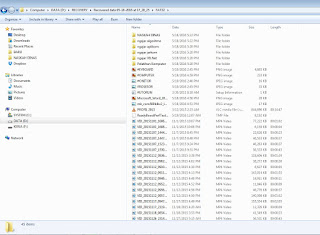
Ini bukti berhasilnya proses recovery:
 |
| EaseUS Hasil Recovery Data |
Silakan buka beberapa file secara acak. Pengalaman yang saya dapat, file saya bekerja dengan normal, baik itu foto, video, file pdf, maupun file MS Word! Artinya, saya berhasil melakukan recovery data sebesar 3.1 GB!
Bagaimana, apakah kamu puas? Pengalaman saya membuktikan performa yang bagus serta kemudahan penggunaan EaseUS ini. Berdasarkan hal tersebut, kami merekomendasikan menggunakan software ini, karena masalah kamu akan terbantu teratasi dengan sangat mudah dan cepat.
Baiklah sahabat pembaca MSB yang baik. Saya akhiri tulisan mengenai software data recovery terbaik ini. Semoga dapat bermanfaat bagi kamu yang sedang mengalami masalah data yang hilang atau rusak.
2. Versi Free hanya dapat digunakan untuk recovery data paling banyak hingga 2 GB
3. Silakan lihat tutorial dan pengalaman saya DI ALAMAT INI
2. Versi Professional dapat digunakan tanpa batas volume data (unlimited)
3. Untuk proses instalasi software ini, silakan lihat pada tutorial BERIKUT INI.
Terimakasih sobat atas kunjungannya. Jika ada masalah, jangan sungkan untuk berbagi melalui komentar.
Catatan tentang EaseUS Data Recovery
Software data recovery ini memiliki versi Free dan versi Pro.Versi Free
1. Versi Free dapat di download pada alamat BERIKUT INI2. Versi Free hanya dapat digunakan untuk recovery data paling banyak hingga 2 GB
3. Silakan lihat tutorial dan pengalaman saya DI ALAMAT INI
Versi Professional (Berbayar)
1. Versi Professional dapat di download pada alamat BERIKUT INI2. Versi Professional dapat digunakan tanpa batas volume data (unlimited)
3. Untuk proses instalasi software ini, silakan lihat pada tutorial BERIKUT INI.
Terimakasih sobat atas kunjungannya. Jika ada masalah, jangan sungkan untuk berbagi melalui komentar.
Available link for download
Saturday, August 27, 2016
Repair PST File By Using Outlook Recovery Software And Make It Accessible
Repair PST File By Using Outlook Recovery Software And Make It Accessible

MS Outlook emerged as most popular desktop email client with PST as its proprietary file format. Outlook data files contain large volume of data and are prone to corruption like any other data files. These files gets corrupted due to many known or unknown reasons and sometimes data gets deleted accidentally form the email or other mailbox folders. To prevent data loss due to corruption; the PST files need to be recovered and restored back on machine.
In the recent past, while working with the application, some of the files were deleted accidently; so I used Outlook Recovery software for recovery of lost data. The overall experience with the tool is summed up here in.
Also Read: 5 Brilliant Windows Password Recovery Softwares
My Expectations from the Tool:
There are some specific requirements that I was expecting to be fulfilled such as:- Recovery of deleted data which is the foremost necessity.
- Recovery of some of the corrupted Outlook files.
- Data Restoration while maintaining its original formatting.
- Maintenance of actual structure of data elements.
- Data storage on machine while keeping its attributes.
What the Tool Offered:
The PST recovery tool offered the following features against the above-stated requirements:- It recovered all the deleted data that was accidently erased from the mailbox.
- It helped recovering files that has been damaged due to oversized volume.
- All the data was restored in its original format on machine.
- The actual structure and composition was kept maintained.
- The mailbox components were restored with integrated attributes.
Additional Features Offered by the Tool:
It offered some supplementary features while recovering PST files and these attributes are:- Advance scan mode to recover files as per necessity.
i. Advance Scan is performed on highly damaged data files.
- Offers recovery of selective items from enlisted components.
i. Select multiple items by clicking on the available checkboxes.ii. Select entire folders to be processed in batch.

- Multiple Export options to select from as per requirement.
i. Export as PSTii. Export as MSG
iii. Export as EML

- Attachments can be previewed in the panel itself.
When an email message is been selected, the enclosed attachments are displayed in the ‘Attachments’ tab within the tool panel and are exported to the selected file format along with the associated message.
Also Read: Tips To Increase Gaming Performance In Windows
- Mail Filter’ feature to export specified period data.
By selecting this option, date particulars can be provided and instructions can be given to the tool for exporting that specific data only. This way, it will export data from the period specified in the ‘From Date’ column and to the duration mentioned under ‘To Date’ column.
- ‘PST Split feature allows dividing large volume files.
The feature enables splitting or dividing the large sized data files to be saved and restored into limited divisions. This way, the corruption that occurred due to oversized volume of the PST file reduces and data is stored in more organized manner.
- Naming Conventions while exporting to EML and MSG.
While saving data to EML and MSG file formats, the tool offers to save the files with appropriate names. This further enables to restore data in a managed way and offers more recognition to the files. Files can be directly selected while avoiding random search.
- Resultant files can be saved into selected format at any selected location on system.
The tool does not alter the original PST files and in fact creates new files for saving the recovered data. It offers the flexibility of saving these files at user defined location on storage media.- The Outlook Recovery tool generates the ‘Export Report’.
This report can be saved in CSV format for future reference as it contains the source and destination location information of the processed file.
Benefits of the Given File Formats:
PST:
When this file format is selected to export recovered data; the mailbox components are saved in their original format. The data gets restored within respective folders where it was residing before corruption or deletion.MSG:
This format is used to restore email messages only and saves single message per file. This way, the chances of data getting absurd are reduced to greater extent and proper manageability is offered to the files.EML:
This is the widely used file extension and is supported over Windows, Mac, iOS, Android and many other Operating Systems. Moreover, it is applicable to emails data only and this way, the email messages can be accessed over smartphones, tablets, etc.Also Read: Unique And New Keyboard Shortcuts Of Windows 10
Improvements Required:
As per my opinion and experience, the tool is well versed with all potential features that are required for recovery and successful storage of data. Therefore, no changes or alterations are required to be done. The developers of the tool have kept the GUI simpler and the recovery procedure is self-defined and quite straight-forward.Final Opinion:
The tool helped me in recovering the deleted data which was the principal requirement. It also offered extracting data from the corrupted Outlook PST files. The additional features that the tool offers such as export to EML and MSG; splitting PST into smaller proportions; saving EML MSG files with suitable names; etc. serves as an add-on while recovering and restoring mailbox data. The performance and functionality of the tool is found to be efficient and accurate.In addition, the availability of Personal, Business and Enterprise Licenses makes it more scalable as this way; flexibility is provided to choose among the given categories. The user can choose any license in accordance with its usage requirements and can test before purchasing the same with Trial version available online.
Based on the overall assessment and experience with the Outlook Repair tool, I would rate it 9.810.
Available link for download
Saturday, August 13, 2016
Laptops Recovery Keys
Laptops Recovery Keys
Notebooks Recovery Keys:
Acer – Alt + F10
Asus – F9
Dell – Ctrl + F11
EI Systems - F10 or Alt + F10
Fujitsu - F12 or Alt + F11
HP / Compaq – F10 or F11
Lenovo / IBM Thinkpad – F11
MSI – F3
Packard Bell - F11 or Alt + F10
Samsung – F4
Sony VAIO – F10
Toshiba – F8 or 0 (not numpad)
Source (and read more about recovery proccess at certain types):
wintips.org
wintips.org
Available link for download
Subscribe to:
Posts (Atom)