Showing posts with label get. Show all posts
Showing posts with label get. Show all posts
Saturday, September 17, 2016
How to get Windows 7 Start menu on windows 10
How to get Windows 7 Start menu on windows 10
Start 10 turns your Windows 10 strat menu to Windows 7 start menu
you can downlad it here

you can downlad it here
Difficult to count all users of Windows 10. For fans of Windows 7, Start10 allows you to install the old menu in the latest version of the OS.
Stardock is a group that for over 20 years likes to change Windows themes. Their latest creation, replaces the Windows 10 Start menu 10 by a menu similar to Windows 7.
Furthermore, it is possible to set the menu, if you dont like the "raw" version of Windows 7 . Several versions, including more "modern" are also available.
Key Features
- Search menu is back in the Start menu
- Restores the quick links to core system functionality
- Maintains the "All Programs" folder metaphor
- Texture can be applied to Start10 background and taskbar
Available link for download

Friday, September 9, 2016
Cara MUDAH mengatasi APT GET UPDATE ERROR
Cara MUDAH mengatasi APT GET UPDATE ERROR
Selamat datang User Ubuntu :), error itu sebuah tantangan bukan hambatan bagi seorang pengguna Ubuntu. Ubuntu 12.04 telah release dan bisa anda download sepuasnya, dan selmat menginstalnya. Udah di instal ko error pas saat apt-get update ?? tenang saya akan membagikan salah satu cara memperbaiki error tersebut.
Penampakan error seperti di bawah ini :
terimakasih telah berkunjung di blog ini denga artikel Cara MUDAH mengatasi APT-GET UPDATE yang Error
Penampakan error seperti di bawah ini :
W: Failed to fetch http://security.ubuntu.com/ubuntu/dists/oneiric-security/ReleaseOke, dibawah ini perintah yang harus anda jalankan pada terminal ubuntu anda:
W: Failed to fetch http://archive.ubuntu.com/ubuntu/dists/oneiric/Release
W: Some index files failed to download. They have been ignored, or old ones used instead.
$ sudo -iSukses kan, kalo ada yang belum sukses silahkan tanyakan dikomentar :
# apt-get clean
# cd /var/lib/apt
# mv lists lists.old
# mkdir -p lists/partial
# apt-get clean
# apt-get update
terimakasih telah berkunjung di blog ini denga artikel Cara MUDAH mengatasi APT-GET UPDATE yang Error
Available link for download
Wednesday, August 24, 2016
How to Free Download and Easily Get Drivers Update for Windows Hardware
How to Free Download and Easily Get Drivers Update for Windows Hardware
When Do You Need to Download and Update Drivers?
- After Windows system reinstall/format, you need to install the necessary drivers to make your computer run normally
- After installing a new device on your system or purchase a new device to upgrade the old
- When there are outdated drivers on your computer hardware devices, you need to update the drivers to the new version to get a better computer performance
- When your drivers are missing or unfortunately broken/corrupted, you need to get the right drivers to ensure the normal operation
But how to get the right and new drivers for free easily and quickly? This is what I will demonstrate in this article.
How to Get Windows Drivers for Free?
Generally, you have 3 ways to get drivers download and update: From Windows Update, from manufacture’s website manually, using driver update tool. From Microsoft official site, you can get detailed steps on how to get drivers update from Windows Update and manufacture’s website. So I won’t give unnecessary details for that.
Yea, I will introduce a free and great driver update tool to all of you. The free tool is DriveTheLife which is designed for all Windows users to update, fix, backup, restore and uninstall drivers. Below is the simple using guide of this software.
How to Use Free DriveTheLife to Update, Fix and Manage Drivers?
Step 1: Get it
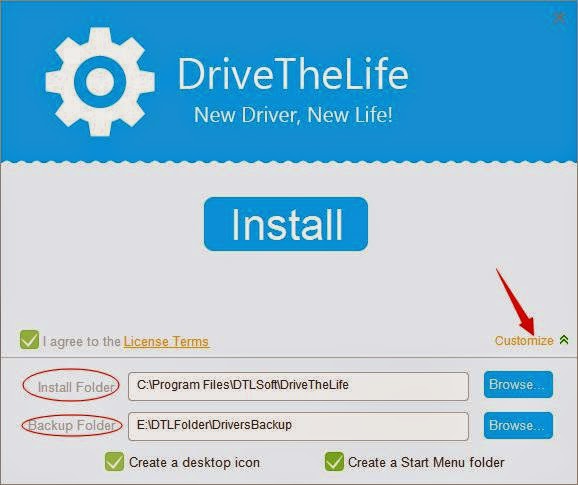
Download DriveTheLife from official site and install it by double click the .exe file on your computer. You can customize the installation directory and save the installation files where you like.
Step 2: Use it
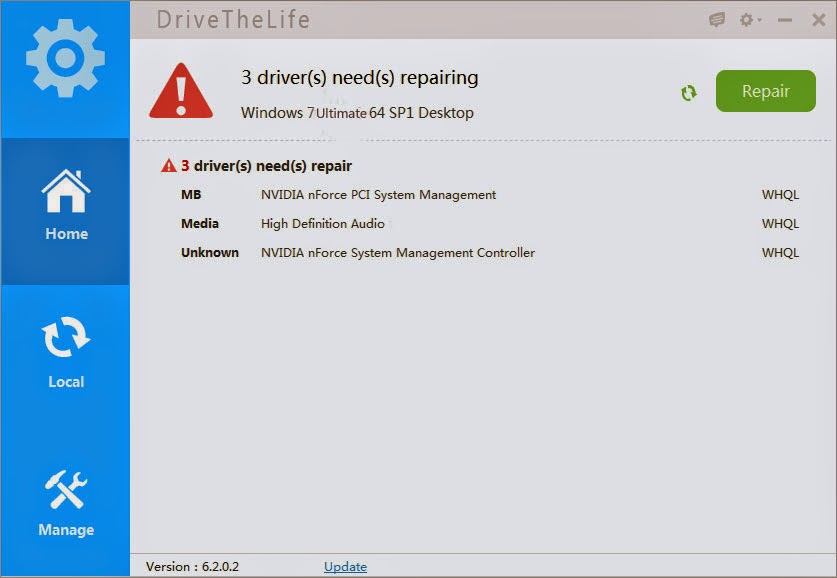
After the installation is done, ”Launch“ it to scan all the available drivers to find the ones in problems and outdated. You can repair all the problems with one click by clicking the Repair button. However, this will only fix the problematic drivers and won’t update out of date drivers. Don’t worry, go to the Local board on the left side, you can get all the updatable drivers. You can update them one by one or just tick all to update at one time for all.
Step 3: Done
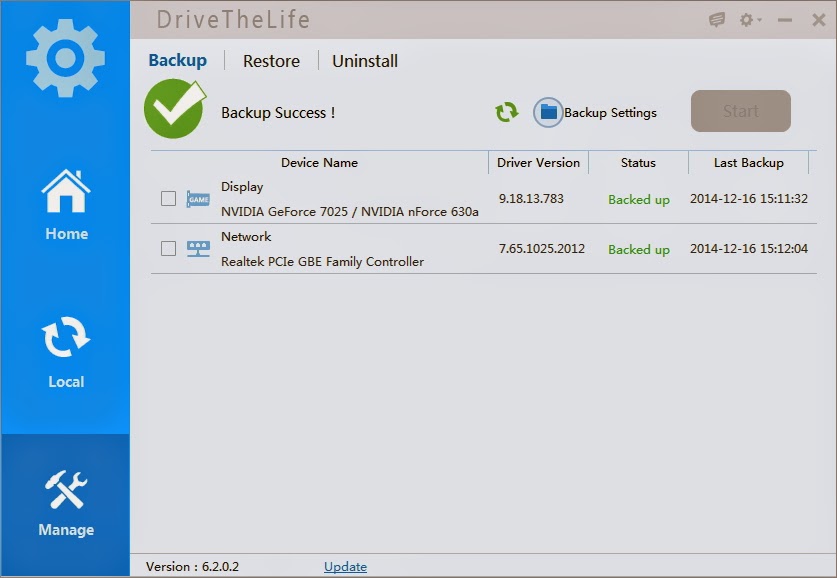
Now you have got the drivers updated or fixed/backed up. You can manage your drivers if needed on the Manage board. You can backup, restore and uninstall drivers here.
For more details, visit DriveTheLife user guide page.
You can choose any of the methods to get drivers on your own need. Also, Microsoft provides a video tutorial about automatically get recommended drivers here.
You can make it!
Available link for download
Subscribe to:
Posts (Atom)