Showing posts with label hardware. Show all posts
Showing posts with label hardware. Show all posts
Wednesday, August 24, 2016
How to Free Download and Easily Get Drivers Update for Windows Hardware
How to Free Download and Easily Get Drivers Update for Windows Hardware
When Do You Need to Download and Update Drivers?
- After Windows system reinstall/format, you need to install the necessary drivers to make your computer run normally
- After installing a new device on your system or purchase a new device to upgrade the old
- When there are outdated drivers on your computer hardware devices, you need to update the drivers to the new version to get a better computer performance
- When your drivers are missing or unfortunately broken/corrupted, you need to get the right drivers to ensure the normal operation
But how to get the right and new drivers for free easily and quickly? This is what I will demonstrate in this article.
How to Get Windows Drivers for Free?
Generally, you have 3 ways to get drivers download and update: From Windows Update, from manufacture’s website manually, using driver update tool. From Microsoft official site, you can get detailed steps on how to get drivers update from Windows Update and manufacture’s website. So I won’t give unnecessary details for that.
Yea, I will introduce a free and great driver update tool to all of you. The free tool is DriveTheLife which is designed for all Windows users to update, fix, backup, restore and uninstall drivers. Below is the simple using guide of this software.
How to Use Free DriveTheLife to Update, Fix and Manage Drivers?
Step 1: Get it
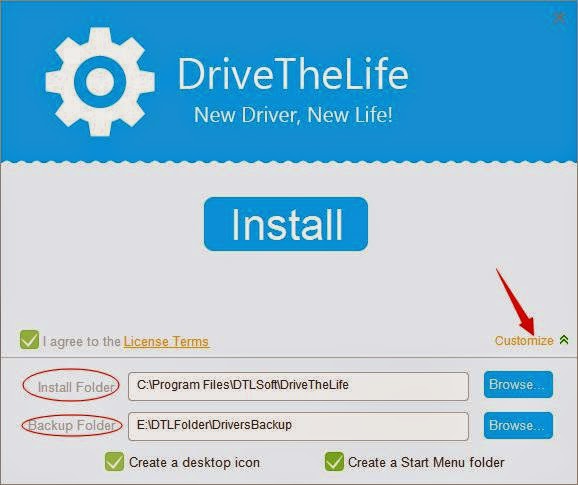
Download DriveTheLife from official site and install it by double click the .exe file on your computer. You can customize the installation directory and save the installation files where you like.
Step 2: Use it
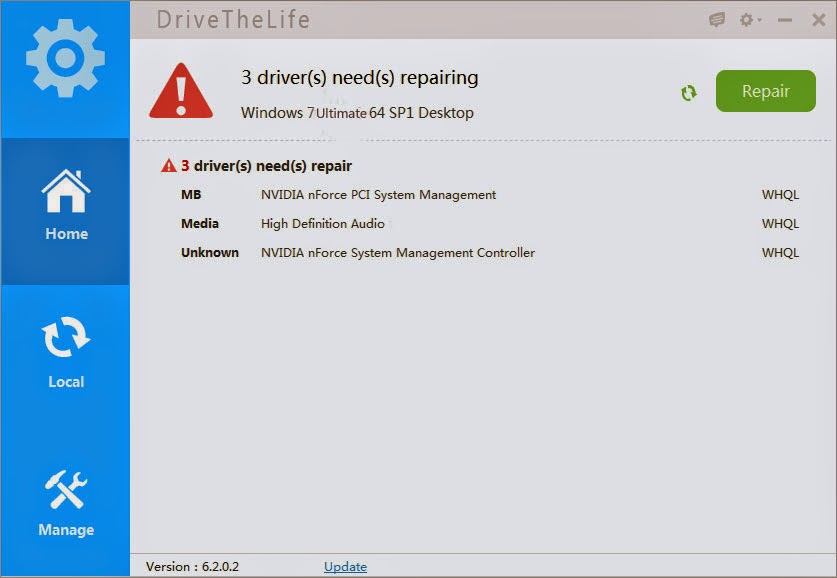
After the installation is done, ”Launch“ it to scan all the available drivers to find the ones in problems and outdated. You can repair all the problems with one click by clicking the Repair button. However, this will only fix the problematic drivers and won’t update out of date drivers. Don’t worry, go to the Local board on the left side, you can get all the updatable drivers. You can update them one by one or just tick all to update at one time for all.
Step 3: Done
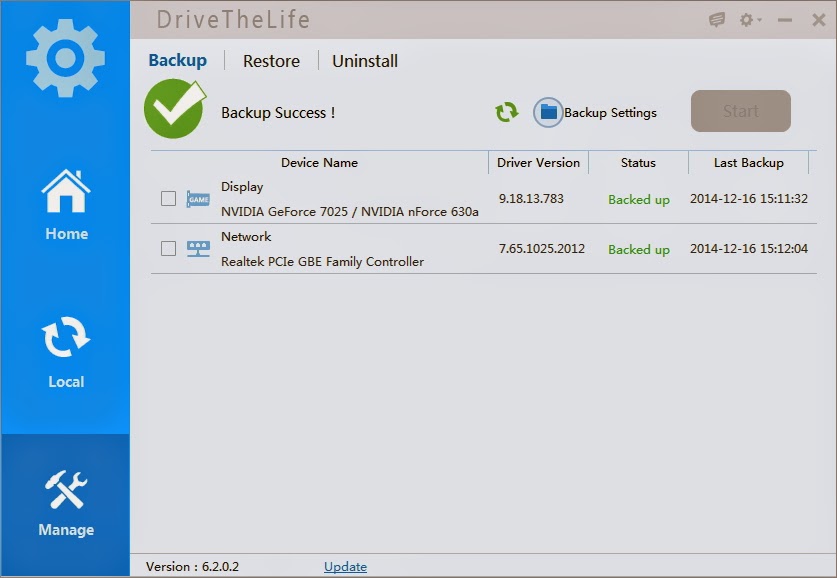
Now you have got the drivers updated or fixed/backed up. You can manage your drivers if needed on the Manage board. You can backup, restore and uninstall drivers here.
For more details, visit DriveTheLife user guide page.
You can choose any of the methods to get drivers on your own need. Also, Microsoft provides a video tutorial about automatically get recommended drivers here.
You can make it!
Available link for download

Monday, August 22, 2016
3 Ways to Update Windows Drivers for Hardware That isn’t Working Properly or Has Outdated Drivers
3 Ways to Update Windows Drivers for Hardware That isn’t Working Properly or Has Outdated Drivers
Hardware Working Improperly on Windows Laptop/Desktop
If your Windows hardware device is working improperly, don’t blame the innocent device itself. Before taking the hardware device to the doctor’s store, you may need to check whether the software that supports the hardware to work is all right. It is quite obvious that the software is the bridge that connects with the hardware and your computer, called driver.
An outdated, corrupted or missing driver can lead to hardware failures. So for any reason, just uninstall the drivers and reinstall it with the latest and suitable driver. How to? Generally, there are 3 ways to update your Windows drivers.
3 Ways to Update Drivers for Windows Hardware Devices
First of all, the commonly used devices on computer are video/graphics card that produces normal display, sound card, network card (both cable network and wireless network are included), motherboard. And there are many peripheral devices connecting with computer like keyboard, mouse, printer, scanner, mobile phones, card readers, digital camera, gamepad and so on. Click here for more drivers download. All the peripheral devices need proper drivers to work with computer.
Now let’s learn how to update and fix driver problems for your Windows computer.
Method 1: Use Smart Driver Update Software
The easiest and most energy-efficient way is to use an automatic driver update program tool which would detect the missing, corrupted and outdated drivers and then install the right ones with ease.
There are many such programs, maybe the most popular and well-known one is Driver Booster, right? But today I’d like to recommend a new giant rise of driver update software – DriveTheLife. It is very simple and clean to use, totally free for all Windows users. Have a try of the new choice!
 |
| DriveTheLife-Update Drivers |
Method 2: Update Drivers Through Windows Update
Most drivers update can be found via Windows Update. So you can check for hardware outdated drivers from Windows Update. But not all updates are included in Windows Update and there might be some delay to inform updated drivers.
- Press Start button, in the search box, type update, in the list of results, click Windows Update.
- In the left pane of the new window, click Check for updates. It will inform you available updates after the check. Click the link to see detailed information about the update. Each type of update might include drivers.
- On the Select the updates you want to install page, look for updates for your hardware devices, select the check box for each driver that you want to install, and then click OK.
- If there are any driver updates, click Install updates. If it prompts for a computer restart, the update will take effect after the restart.
 |
| Windows Update |
Method 3: Download and Install Drivers Updates by Yourself
The last and the least recommended way is to download and update drivers by your own especially you are not knowledgeable on computer hardware and software. It is troublesome to do this, what’s worse is that if you install the wrong driver, device may not work and even lead to dead computer in the worst case.
However, if you hold a firm decision to update drivers by yourself, do as the follows:
- Check your hardware information and find the corresponding drivers from its manufacture’s website, download drivers from the driver download page.
- If it is a ZIP file, unzip it and click the right .exe program to install (Just like installing other software).
- After the driver installed alright, restart your PC to let the new driver take effect.
 |
| Update Drivers Yourself |
You can choose any of the above methods to update Windows hardware drivers as necessary.
Available link for download
Sunday, August 21, 2016
How to Repair Driver Issues for Windows Hardware Devices
How to Repair Driver Issues for Windows Hardware Devices
Introduction
If you have any problems with your computer hardware, there is a possibility that the problem is resulted from driver issues since drivers are a type of software that acts as the middleman between your operating system and specific hardware components, such as a printer and monitor. If the driver is down, then the middleman is sick and cant convey the information correctly. That is why your hardware components dont respond.
This article demonstrated several methods that deserve a try to repair driver issues and make hardware working again.
Method 1: Restore Your Computer to a Point before Problems Began
Suppose that you do create a restore point before the problem showed up, you can restore your system to this point.
Start >All Programs >Accessories >System Tools >System Restore
Then follow the on-screen prompts to do the rest.

Note that this will restore all other settings and data in Disk C to the point where you created the restore point. So be careful if you have very important data that cant be erased in C.
Method 2: Uninstall Corrupted/Problematic Driver and Reinstall It
Another common way to fix driver problems is to uninstall and reinstall drivers.
1. Go to Device Manager and pull down the specific device driver.
2. Double click it to open the Properties window.
3. Click Driver tab and choose Uninstall.
4. Reboot after the uninstallation.

Windows will search for the missing driver and try its best to reinstall whatever driver it can. However, sometimes the automatic search and reinstall will fail due to various reasons. In this case, you may download and install specific driver from manufactures website or use driver download and install tool to automatically do this.
Method 3: Restore Drivers from Backup If You Just Right Made the Backup Before
It is always a good habit to make a backup, either for data, programs or settings, configurations because you never know when accidents will happen and you need the old data/programs.
Windows does not provide us with a built-in option to backup and restore drivers so you need a 3rd party tool to complete this. Try 100% free and easy-to-use tool DriveTheLife.
1. Download, install and launch DriveTheLife.
2. It will start an automatic scan of all drivers without advanced configuration.
3. If you need to backup or fix drivers, just go ahead. All the features of this program is free.
4. Now lets skip all that to backup and restore driver. Go to Manage board and you will see three options: Backup, Restore and Uninstall.

If you have made backup before, just click Restore tab and it will display in the available list to restore.
5. Restart computer and done!
Thats all for what I will demonstrate in this article to fix driver related problems. Updating drivers and rolling backup driver are also methods but they are similar to uninstall/reinstall drivers and restore to restore point so I wont write it here.
Available link for download
Subscribe to:
Posts (Atom)