Showing posts with label need. Show all posts
Showing posts with label need. Show all posts
Sunday, September 18, 2016
Windows 10 Microsoft and your private data What you need to know
Windows 10 Microsoft and your private data What you need to know
Windows 10, Microsoft and your private data: What you need to know

Did you know that using Windows 10, a unique advertisement identifier is assigned to you , usable by developers and advertisers? Or by default, Microsoft sends all your passwords to servers when you join the computer to a Microsoft account? These are some of the information in the new Microsoft Privacy Statement, which we quote the main extracts.
Microsoft wrote Thursday to inform them that he had updated its Services Agreement and Privacy Policy not only to make information more accessible in one place, visible and more accurately, but also to add "several additional privacy information on new features we propose soon, such as those available under Windows 10". They take effect on 1 August 2015.
So we read all of the new Privacy Policy (that we were not comparable to the old, failing to successfully get hold of it), to highlight the passages that seem most important to know. To be fair to Microsoft an effort that we had never seen before, in line with European legislation, details on the data collected and the use that is made. It is still sometimes improved, but much better than the blur found in the conditions of Google, for example.
There is no claim to completeness in our selection of the key passages necessarily subjective, but it seems instructive. It concerns both Microsoft services in their near entirety, the Windows 10 system that arrived on 29 July .
Rather than a long commentary, it is best to copy and paste the excerpts that speak for themselves.
ESSENTIAL TO KNOW
- By default, "when you log in to Windows with a Microsoft account, Windows syncs some of your settings and your data with Microsoft servers," including "the history of your browser, bookmarks and web sites you open "and" names and passwords to backup your apps, websites, mobile terminal and Wi-Fi network. " To disable this transfer to Microsofts servers, think to go to the "Accounts Settings / Synchronization Settings".
- "Windows generates a unique advertising identifier for each user of a device Your advertising identifier can be used by application developers and ad networks to deliver more relevant ads.";
- "When the encryption device is on, Windows automatically encrypts the hard drive where Windows is installed and generates a recovery key. The BitLocker recovery key for your device is automatically backed up online in your Microsoft account onedrive" (light If you use the encryption tool provided by Microsoft, Microsoft retains the key with him, and will therefore make available any public authority requesting by legal means to access it);
- "Microsoft regularly collects basic information about your Windows machine. (...) This information is sent to Microsoft and stored using one or more unique identifiers." These include "apps use datafor apps that run on Windows", or "data about the networks to which you connect, as mobile networks, Bluetooth, identifiers (BSSID and SSID), criteria connection and speed of Wi-Fi networks to which you are connected. " Microsoft states that "certain diagnostic information is essential to the operation of Windows and can not be disabled if you use Windows";
- In the new Microsoft browser Edge, and when AutoSearch Search suggestions are enabled, the browser sends Bing "the information you enter in the browser address bar", "even if you have selected a different default search provider" . Microsoft adds that "the navigation data collected in connection with these features are used in global data", that is to say, they are involved in establishing the commercial profile of the user;
DIVERS ON CORTANA, WINDOWS 10, MICROSOFT EDGE OUTLOOK ...
- "To allow Cortana to provide personalized experiences and relevant suggestions, Microsoft collects and uses different types of data, such as the location of your device, the data in your calendar, apps you use, the data in your emails and your text messages, people call you, your contacts and the frequency of your interactions with them on your device. Cortana also learns about you by collecting data on how you use your device and other Microsoft services, like your music, alarm settings, if the Lock screen is turned on, what you watch and buy, your browsing history and Bing search, and more. "
- "When using onedrive, we collect data about your use of the service and the content you store"(this is very vague on what he does "information on the contents);
- "To provide a personalized voice recognition, we record the entry of your voice, and your name and nickname, recent events from your calendar and the names of people with whom you have an appointment, and information about your contacts, including their names and surnames ";
- "Microsoft does not use what you say in emails, discussions, video calls or voice mail or your documents, photos or other personal files to send you targeted ads," but he still uses "d Other information we collect about you over time using your demographics, your search queries, your interests and your Favorites, your data usage, and your location data ";
- "We will accede to, will preserve and disclose personal data, including your content (like the content of your emails, or other private communications private folder files) when we believe in good faith that it is necessary to do so "especially for" responding to valid legal requests ";
- "Personal information collected by Microsoft may be stored and processed in the United States or any other country in which Microsoft, its affiliates or service providers are located";
- "In Outlook.com, when your Deleted Items folder is emptied, these deleted items remain in our system for 30 days maximum before final removal";
Available link for download

Friday, September 2, 2016
Everything You Need to Disable in Windows 10
Everything You Need to Disable in Windows 10
Windows 10 is the most cloud-oriented version of Windows to date—yet, while this means you get some nifty new features, it also means some of your personal data is being shared with Microsofts servers.

In general, Microsoft has proven to be a fairly trustworthy company when it comes to utilizing your data in order to streamline services like Cortana, but an excerpt from their privacy statement puts the scope of this data mining into perspective:

In all fairness to Microsoft, this type of behavior has become commonplace amongst tech companies across the world—but that doesnt mean we should sit idly by. Additionally, some of these features can cost you battery life and performance, so Ill show you how to disable them all below.
Disable Wi-Fi Sense
The first questionable Windows 10 feature Id like to talk about is called "Wi-Fi Sense." Microsoft enabled this feature by default, and to summarize, your network passwords can now be shared with your social media friends automatically. Its a 2-way street, so the convenience factor is definitely appealing—no more asking for your friends Wi-Fi password, and no more issues conveying your own complicated password to your friends.
The description sounds scary, but Wi-Fi Sense does not share passwords automatically—while its enabled by default (so you can access shared passwords), you have to explicitly choose what passwords to share. None are shared without you explicitly choosing to share them. When shared, the passwords are securely stored on Microsofts servers and never revealed to others, even when shared, but thats just it—its my password, and I never wanted Microsoft to have it in the first place. Encrypted or not.
So if youd like to disable Wi-Fi Sense, open your Start menu and launch the Settings app. From here, choose the "Network & Internet" option to begin.

Next, click the "Manage Wi-Fi settings" option on the following page.

From here, the Wi-Fi Sense options will be displayed at the top of the screen. Basically, you want to disable every last option in this menu.

At this point, youll no longer be participating in Microsofts Wi-Fi sharing program, but your passwords may still be stored remotely. To disable Wi-Fi Sense altogether, youll have to add a suffix of "_optout" to the end of your Wi-Fi networks name (SSID) through your routers settings menu.
Disable Bandwidth Sharing for Updates
In another strange act of opt-out data sharing between users, Windows now uses a sort-of peer-to-peer network for downloading updates. Similar to a torrent program, this means that when you download a Windows update file, youre also uploading parts of it to other users.
Since unnecessary bandwidth usage can be costly, youll probably want to disable this one. Again, start by heading to the Settings menu, but this time open the "Update & Security" section.

From the "Windows Update" tab on the next screen, click the "Advanced options" button to find the setting were looking for.

Next, scroll down to the bottom of this page, then select the option labeled "Choose how updates are delivered."

Finally, turn off the toggle switch directly beneath the excerpt about "Updates from more than one place." They really buried this one deep, didnt they?

Disable Automatically-Applied Updates
On the subject of updates, Windows 10 now automatically applies updates by default, which is a nice feature on the surface. The downside here, though, is that while they say itll only restart your device while youre not using it, I can personally attest that this is not always true.
So if you dont want to run the risk of losing unsaved data when Windows decides it needs to update itself, head to Settings, then Update & Security, and select the "Advanced options" entry again. From here, click the drop-down menu directly beneath the "Choose how updates are installed" header.

Finally, set this option to "Notify to schedule restart." This will ensure that Windows at least gives you a warning before restarting itself to apply updates.

If you experience any issues with Windows restarting multiple times in an attempt to apply the same broken update, be sure that you have disable automatic updates on Windows 10.
Disable Getting to Know You Features
Another disturbing feature that is meant to streamline your Windows 10 experience is called "Getting to know you." This one logs your typing history, saves recordings of your voice, collects information from your contacts, calendar, and even your handwriting—all in the name of giving you a more personalized experience with Cortana.
In addition to options for the "Getting to know you" feature, each of these last 4 sections will be dealing with options in Windows 10s Privacy menu—so open your Start menu and launch the Settings app, then select "Privacy" to begin.

From here, select the "Speech, inking & typing" category in the left-hand menu, then click "Stop getting to know me" to take back a bit of privacy.

Disable Targeted Ads
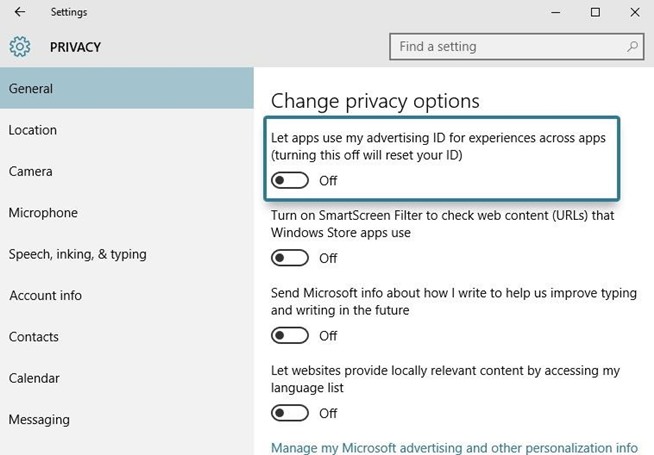
With Windows 10, youve now been issued a unique advertising ID to help "serve" you with more targeted ads. This ID cannot be removed permanently, but at the very least, you can prevent 3rd-party apps from accessing this data.
To begin, head to the "General" tab in Windows 10s Privacy menu. From here, make sure to disable the topmost toggle switch, labeled "Let apps use my advertising ID for experiences across apps."
Available link for download
Read more »
Thursday, August 25, 2016
Download Game Need For Speed Portable Gratis
Download Game Need For Speed Portable Gratis
 |
| Need For Speed Most Wanted |
Untuk Game Need For Speed Portable dukungan spesifikasi komputer:
? Untuk CPU Min 1.4 GHz
? RAM Min 256
? VGA 512, untuk Onboard Sharing 1 GB agar maksimal
? HDD Min 3 BG Storage
ScreenShot Game Need For Speed:
 |
| NFS1 |
 |
| NFS2 |
 |
| NFS3 |
 |
| NFS4 |
Link Download Game Need For Speed Portable:
Download Game Need For Speed Portable (493 MB)
Sumber dari: Sobatdownload
Selamat Menikmati Game Serunya!!! Dan baca juga artikel ini Xmod COC APK Versi Terbaru klik DISINI
Free Download Software
Available link for download
Saturday, August 20, 2016
Everything You Need To Know About Chiropractors
Everything You Need To Know About Chiropractors
Physical pain can be debilitating. Sharp pain that you dont understand is really frustrating. This can be quite frightening, making it even more important to know how to avoid more back pains. The advice in this piece can help.
Make sure you are getting up out of your bed properly. Before getting up, stretch a little and rise slowly. Next, swing your legs out and to the floor while supporting yourself with your arms. This reduces spinal injuries.
You shouldnt be expecting a single chiropractor visit to solve all your back problems. Sure, you might get some relief immediately, but you can only heal after extended care. Stick with whatever regiment your chiropractor suggests. If not, you will end up disappointed with the results.
Do not believe that you will be all better after you go to the chiropractor once. While it may make you feel better right away, it will take many sessions to see great improvements. Closely follow any regimen your chiropractor recommends. Otherwise, you might be disappointed later.
Get out of your bed the right way. Before getting yourself out of bed, try getting stretched out and the raise up slowly. As you begin to move, swing your legs down, supporting your body with your arms. When this is the way you arise from bed, you stand a better chance of avoiding spinal problems.
In addition to healing you physically, chiropractics can boost your immunity. Bones that are out of alignment in the spine often interfere with your nervous systems functioning. Your nervous central system controls many functions in the body, and if the spine is misaligned it can weaken your immune system. You can get your immune system back to full functionality by correcting the original issue.
Visit your doctor to get a referral to a good chiropractor. Your doctors assessment of your issues is important. This also allows your chiropractor to better understand how your particular issue should be handled. You may also find out that chiropractics are not the best option for you. Your doctor might recommend something else,
Avoid chiropractors who push a lot of homeopathic products. If they market these products in their offices, do not trust them. Nutritionists and doctors are the best sources for such advice.
Do you have high blood pressure? Research seems to indicate that proper manipulation of your necks first vertebrae is just as good as taking a pair of blood pressure medications at the same time. Properly manipulated vertebrae allow good nerve supply to your heart, which helps your body regulate its blood pressure.
If you carry a purse, be mindful of how you hold it on your body. You dont need it to be carried on the exact same shoulder each time. Dont let your purse get too heavy. Try getting the items out that youre not going to need so you can have a lighter load.
Avoid chiropractors that try to load you up with dietary pills, herbal and homeopathic products. If such products are sold in their practice, they may be not be trustworthy. You should stick with your doctors and nutritionists as a source for these things.
Having read this article, you are better informed. Now, you know what to look for in good chiropractic care. Its also important that you know when to use these services. Schedule appointments as necessary. No one should have to live in constant pain.
When you have any kind of issues concerning where as well as how you can work with complete chiropractic care, youll be able to e-mail us on the website.
Available link for download
Monday, August 1, 2016
No need for a big configuration of smartphone to use Windows Mobile 10
No need for a big configuration of smartphone to use Windows Mobile 10
Windows Phone was never a very greedy operating system.

Microsoft announced the basic features for a smartphone can run the future operating system and without too many surprises, they are sufficiently accessible for (future) Windows Phone manufacturers can develop mobile d entry level.
Windows 10 Mobile will be at ease on smartphones equipped with at least a screen resolution of 800 x 480, 512 MB RAM, 4GB of storage, and a VGA photo sensor back.
It is not necessary to have a camera in front, and does not require Microsoft to use the latest versions of Bluetooth or last motion sensors cry.
Microsoft seems to want to prompted all manufacturers hesitant to embark on Windows 10 Mobile. Start an entry-level smartphone is less expensive than marketing bluntly premium mobile.
Available link for download
Subscribe to:
Posts (Atom)