Showing posts with label printer. Show all posts
Showing posts with label printer. Show all posts
Friday, September 23, 2016
Mengatasi Printer Epson L200 Yang Hasilnya Kurang Maksimal
Mengatasi Printer Epson L200 Yang Hasilnya Kurang Maksimal
Saat kita melakukan print-out, tiba-tiba printer Epson L200 milik atasan saya menghasilkan hasil yang kurang bagus. Hasil print-nya ada garis-garis dan di beberapa titik kurang sempurna mencetak. Kalau kamu juga mengalami hal yang sama, cara untuk mengatasi printer Epson L200 yang hasilnya kurang maksimal diantaranya adalah sebagai berikut.
penting! cara memperbaiki printer Epson L200 yang mencetak tidak bagus
penting! cara mereset printer Epson L200
penting! download resetter printer Epson L200
Mengatasi Printer Epson L200 Yang Hasilnya Kurang Maksimal
Clean Head
Cara clean head merupakan cara paling umum. Karena ketika hasilnya kurang maksimla, bisa disebabkan karena head printer kita memang harus dibersihkan, karena sudah dalam pemakaian yang cukup lama. Inilah cara yang seringkali dilakukan untuk mengatasi printer epson L200 yang hasilnya kurang maksimal. Lalu, bagaimana cara clean head pada Epson L200?
Cara Clean Head pada Epson L200
Windows 7:
- Pilih menu start
- printer and fax
- Muncul gambar Epson L200 yang sudah terinstall
- klik kanan
- printing preferance
- tab maintenance
- klik head clean
- jika dirasa kurang, bisa sambil klik power, lalu pilih head clean.
- jika mau dengan cara manual, dari printer L200 tekan tombol resume sampai cartridge di dalam terasa bergerak-gerak tanda sedang melakukan proses cleaning.
- Pilih menu start
- ketik "printer"
- maka akan muncul pilihan "Devices And Printers", pilih menu tersebut
- muncul gambar Epson L200 yang sudah terinstall
- klik kanan
- printing preferance
- tab maintenance
- klik head clean
- jika dirasa kurang, bisa sambil klik power, lalu pilih head clean.
- jika mau dengan cara manual, dari printer L200 tekan tombol resume sampai cartridge di dalam terasa bergerak-gerak tanda sedang melakukan proses cleaning.
 |
| Devices And Printers |
Jika head cleaning biasa dirasa kurang mantap, dapat dilakukan power cleaning, yakni proses cleaning yang lebih dalam dan lebih kuat. Hati-hati, jangan terlalu sering. Power Cleaning pada Epson L200 dapat kita lihat pada gambar sebagai berikut.
 |
| Power Cleaning. Sumber. |
Setelah dilakukan clean head, sebagian besar Epson L200 akan normal kembali. Inilah salah satu cara paling ampuh dalam mengatasi printer epson L200 yang hasilnya kurang maksimal. Perlu diingat, bahwa ini hanya salah satu cara mengatasi printer epson L200 yang hasilnya kurang maksimal. Masih ada cara lain, diantaranya adalah pada poin-poin berikutnya.
Mencuci Catridge
Mencuci Catridge dilakukan jika proses head cleaning yang sudah dilakukan dua kali namun juga masih gagal. Proses mencuci catridge harus dilakukan oleh teknisi yang mengerti. Oleh karena itu, harap dibawa saja ke tempat service di sini. Mencuci Catridge merupakan salah satu cara mengatasi printer epson L200 yang hasilnya kurang maksimal.
Menyedot Tinta di dalam Catridge
Menyedot tinta dilakukan jika tinta di dalam catridge kosong. Artinya, tinta dari tabung tidak tersalurkan ke dalam catridge. Sehingga walaupun dilakukan head cleaning, tetap saja hasilnya kurang maksimal, bergaris, dan lain sebagainya. Cara ini lebih baik dilakukan oleh teknisi. Oleh karena itu, untuk melakukannya, dapat dilihat melalui tutorial pada halaman berikut ini.
sekilas info: Cara Reset Printer Epson L200
sekilas info: Silakan Download Software Resetter Epson L200
Demikianlah cara-cara untuk mengatasi printer epson L200 yang hasilnya kurang maksimal. Beberapa cara di atas semoga dapat membantu kamu ketika menemui masalah yang serupa, ya! :)
Available link for download

Wednesday, September 21, 2016
HP Deskjet 3050A J610A Driver Printer Download
HP Deskjet 3050A J610A Driver Printer Download
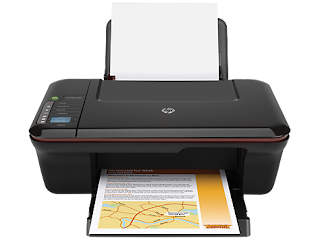
Download HP Deskjet 3050A J610A Driver And Software for windows 10, windows 8, windows 7 and mac. This Wireless All-in-one printer deliver high quality print, scan and copy. By using this printer you will get maximum print speeds up to 20 pages per minute black, up to 16 ppm color.You can easily print and share wirelessly from an e-all-in-one that offers convenient HP ePrint mobile printing and outstanding reliability.
hp4driver.com provides full feature driver and software for HP Deskjet 3050A J610A. Select the driver that compatible with your operating system.
Installation Guide
Windows Operation System :
hp4driver.com provides full feature driver and software for HP Deskjet 3050A J610A. Select the driver that compatible with your operating system.
Installation Guide
- When the download is complete and you are ready to install the files, click Open Folder , and then click the downloaded file. The file name ends in .exe.
- You can accept the default location to save the files. Click Next, and then wait while the installer extracts the files to prepare for installation.
- When the Install Wizard starts, follow the on-screen instructions to install the software.
- Open Control Panel then click Unistall a Program Doubleclick on the printer you want to unistall, and then click yes
- When the uninstall wizard end, click finish
- Windows 10 32 & 64 bit
- Windows 8.1 32 & 64 bit
- Windows 8 32 & 64 bit
- Windows 7 32 & 64 bit
- Windows XP 32 & 64 bit
- Windows Vista 32 & 64 bit
- Manufacture : HP
- Hardware : HP Deskjet 3050A J610A
- Software name : HP Deskjet Full Feature Software and Drivers
- File Name : DJ3050_J610_1315-1.exe
- Version : 28.8
- Released: Aug 16, 2014
- File Size : 54.5 Mb
- Download Windows 10, windows 8.1, windows 8, (54.5 Mb)
- Download windows 7, Windows vista, windows xp (54.5 Mb)
- Mac OS X El Capitan v10.11
- Mac OS X Yosemite v10.10
- Mac OS X Mavericks v10.9
- Mac OS X Mountain Lion v10.8.5
- Mac OS X Lion v10.7
- Mac OS X Snow Leopard v.10.6.8
- Mac OS X Leopard v10.5.8
- Manufacture : HP
- Hardware : HP Deskjet 3050A J610A
- Software Name : HP Deskjet Full Feature Software and Drivers
- File Name : HP_Mountain_Lion_Ink_SW_v12.23.17.dmg
- Version :12.23.0
- Released : 2014/01/23
- File Size : 136.6 MB
- Download Mac OS X 10.8
- Download Mac OS X 10.7
Available link for download
Wednesday, September 14, 2016
Installing HP Printer with an Alternate Driver in Windows 7 for a USB Cable Connection
Installing HP Printer with an Alternate Driver in Windows 7 for a USB Cable Connection
Table of compatible drivers at www.hp.com
| Product | Alternate driver |
|---|---|
| Deskjet 3320, 3325, 3420 and 3520 | Deskjet 3600 * |
| Photosmart 7560, 7565, 7600 and 7660 | Deskjet 5600 |
| Deskjet 5850 | Deskjet 5600 |
| Photosmart 130, 145, 230, 240 and 245 | Photosmart 330 * |
| Photosmart 7150, 7350, 7355 and 7550 | Deskjet 5550 |
| Photosmart 7760 and 7960 | Deskjet 5600 |
| Deskjet 6122 and 6127 | Deskjet 990c * |
| Deskjet 3820 | Deskjet 970cse * |
| Deskjet 656 | Deskjet 660c * |
| Business Inkjet 1100d | Business Inkjet 1000 |
| Business Inkjet 1100dtn | Business Inkjet 1000 |
| Deskjet 9300 | Deskjet 1220c * |
| Deskjet 9650, 9670, 9680, 9680gp | Deskjet 9800 |
* Available only through Windows Update.
More useful HP support page:Products Supported in Windows 7
Available link for download
Tuesday, September 13, 2016
HP Deskjet 3057A Driver Printer Download
HP Deskjet 3057A Driver Printer Download
Download HP Deskjet 3057a Driver And Software for windows 8, windows 7 and mac. This printer deliver high quality print, scan and copy. You can easily print and share wirelessly from an e-all-in-one that offers convenient HP ePrint mobile printing and outstanding reliability.
hp4driver.com provides full feature driver and software for HP Deskjet 3057a. Select the driver that compatible with your operating system.

Installation Guide
- When the download is complete and you are ready to install the files, click Open Folder , and then click the downloaded file. The file name ends in .exe.
- You can accept the default location to save the files. Click Next, and then wait while the installer extracts the files to prepare for installation.
- When the Install Wizard starts, follow the on-screen instructions to install the software.
- Open Control Panel then click Unistall a Program Doubleclick on the printer you want to unistall, and then click yes
- When the uninstall wizard end, click finish
- Windows 10 32 & 64 bit
- Windows 8.1 32 & 64 bit
- Windows 8 32 & 64 bit
- Windows 7 32 & 64 bit
- Windows XP 32 & 64 bit
- Windows Vista 32 & 64 bit
- Manufacture : HP
- Hardware : HP Deskjet 3057a
- Software name : HP Deskjet 3057a Full Feature Software and Drivers
- File Name : DJ3050A_J611_1315-1.exe
- Version : 28.8
- Released: 2014-08-16
- File Size : 54.72 Mb
- Download Windows 10, windows 8.1, windows 8, windows 7 (54.72 Mb)
- Download Windows vista, windows xp (54.72 Mb)
- Mac OS X Yosemite v10.10
- Mac OS X Mavericks v10.9
- Mac OS X Mountain Lion v10.8.5
- Mac OS X Lion v10.7
- Mac OS X Snow Leopard v.10.6.8
- Mac OS X Leopard v10.5.8
- Mac OS X Tiger v10.4
- Manufacture : HP
- Hardware : HP Deskjet 30557a
- Software Name : HP Deskjet 3057a Full Feature Software and Drivers
- File Name : Deskjet-3050A-J611_v12.23.0.dmg
- Version :12.23.0
- Released : 2014/01/23
- File Size : 144.52 Mb
- Download Mac OS X v10.6,v10.7, v10.8 (144.52 Mb)
Available link for download
Wednesday, September 7, 2016
How to install HP Laserjet 1010 1012 1015 Printer Driver on Windows 8 1 and Windows 10
How to install HP Laserjet 1010 1012 1015 Printer Driver on Windows 8 1 and Windows 10
HP LaserJet 1010 not supported in Windows 8 or Windows 8.1 and Windows 10
Workaround:
(It works with Windows 8.1, but I got a comment, that it works with Windows 10 as well.)
-Download the HP LaserJet 1012 Host Based (Windows Vista 32 or 64 bit) driver from here.
-Extract the selected driver into a folder.
Follow next steps (and see the pics below):
Devices and Printers
Add Printer
The printer that I want isnt listed
Add a local printer or network printer with manual settings
Use an existing port - choose DOT4_001 (HP Print device)
Next
Click on "Have disk..." (and browse folder where you extracted drivers before)
Choose "hpc1015w", than click open
Click on your printer type
Nex, next, finish :)
Print a test page.


I found solution here.
Available link for download
Thursday, September 1, 2016
Reinstalling a failed setup of HP printer or scanner
Reinstalling a failed setup of HP printer or scanner
If reinstalling failed of HP printer or scanner, you can do this:
Uninstall all HP utilities and remove drivers of HP printer (or scanner).
Than delete all registry key of HP printer, or scanner which remained after uninstalling.
Next: install the newest drivers without connecting USB cable.
When the process ask you to connect the USB cable, connect it and power on the printer.
Process will be finish successfully.
Available link for download
Wednesday, August 31, 2016
Download HP Photosmart c4600 Driver Series Printer
Download HP Photosmart c4600 Driver Series Printer
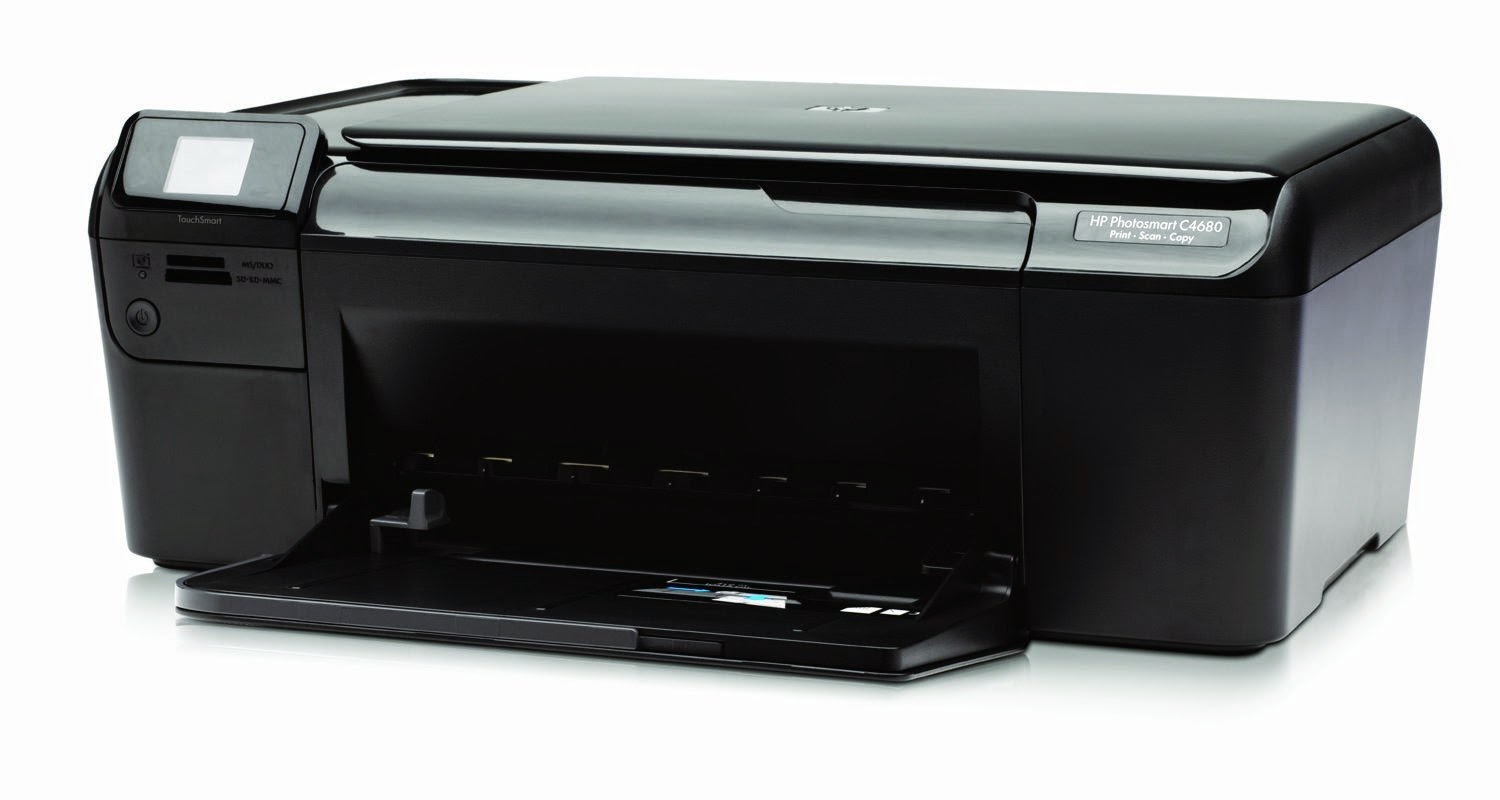
Download HP Photosmart c4600 Driver for windows 8, windows 7 and mac. This printer delivers print speeds up to 29 ppm for black and 23 ppm for colour and laser-quality output at resolutions up to 1200dpi.You can easily easily print, copy, scan and get lab-quality photos all from one compact machine, avoid printing errors and get consistent result.
hp4driver.com provides full feature driver and software for hp photosmart c4600 series. Select the driver that compatible with your operating system.
Installation Guide
Windows Operation System :
hp4driver.com provides full feature driver and software for hp photosmart c4600 series. Select the driver that compatible with your operating system.
Installation Guide
- When the download is complete and you are ready to install the files, click Open Folder , and then click the downloaded file. The file name ends in .exe.
- You can accept the default location to save the files. Click Next, and then wait while the installer extracts the files to prepare for installation.
- When the Install Wizard starts, follow the on-screen instructions to install the software.
- Open Control Panel then click Unistall a Program Doubleclick on the printer you want to unistall, and then click yes
- When the uninstall wizard end, click finish
- Windows 8.1 32 & 64 bit
- Windows 8 32 & 64 bit
- Windows 7 32 & 64 bit
- Windows XP 32 & 64 bit
- Windows Vista 32 & 64 bit
- Manufacture : HP
- Hardware : HP Photosmart c4600
- Software name : HP Photosmart c4600 Full Feature Software and Drivers
- File Name : PS_AIO_05_C4600_NonNet_Full_Win_WW_140_404.exe
- Version : 14.8.0
- Released: 20 Aug 2014
- File Size : 136.9 Mb
- Download Windows 8.1, windows 8 (136.9 Mb)
- Download Windows 7, windows xp (123.03 Mb)
- Mac OS X Yosemite v10.10
- Mac OS X Mavericks v10.9
- Mac OS X Mountain Lion v10.8.5
- Mac OS X Lion v10.7
- Mac OS X Snow Leopard v.10.6.8
- Mac OS X Leopard v10.5.8
- Mac OS X Tiger v10.4
- Manufacture : HP
- Hardware : HP Photosmart c4600
- Software Name : HP Photosmart c4600 Full Feature Software and Drivers
- Version :11.0.0
- Released : 05 Apr 2010
- File Size : 170.55 Mb
- Download Mac OS X v10.4, v10.5 and v10.6 (170.55 Mb)
- Download Mac OS X v10.7, v10.8, v10.9 (10.56 Mb)
Available link for download
Thursday, August 25, 2016
Cara Reset Printer Epson L200
Cara Reset Printer Epson L200
 |
Tulisan ini mengurai secara rinci Cara Reset Printer Epson L200. Cara atau langkah-langkah yang diperlukan untuk melakukannya pertama-tama adalah dengan memastikan bahwa memang benar printer Epson L200 ini perlu untuk direset. Karena memang belum tentu ketika kita mendapatkan warning bahwa Epson harus direset, maka itu dapat langsung direset. Bisa jadi karena penyebab lainnya. Namun jika memang harus direset, langsung saja, langkah-langkah cara reset printer Epson L200 dapat dijelaskan sebagai berikut:
penting: cara memperbaiki printer epson l200
Cara Reset Printer Epson L200
#1 Install Software Aplikasi Resetter Epson L200 di komputer Anda. Jika belum punya, silakan download dahulu di sini.
download resetter Epson L200 di siniCara Install software ini adalah dengan mengekstraknya saja menggunakan Winrar atau sejenisnya. Setelah diekstrak, maka aplikasi tersebut sudah siap pakai.
#2 Nyalakan Espon L200
Pastikan printer Anda menyala. Agar proses ini dapat berlanjut.#3 Pastikan Espon L200 sudah connect dengan komputer dan terinstall drivernya.
#4 Kemudian jalankan Resetter Epson L200, dengan dobel klik file "AdjProg.exe"
 |
Lokasi AdjProg.exe |
#5 Klik "accept"
 |
| Pilih Accept |
#6 Pilih "Particular Adjusment Mode"
 |
| Pilih Particular Adjustment Mode |
#7 Pilih "Waste ink pad Counter reset"
 |
| Pilih Waste Ink Pad Counter |
#8 klik "Check"
 |
| Pilih Check |
#9 centang "main pad counter, FL box counter, Ink tube Counter", kemudian klik "Initialization"
 |
| Pilih Initialization |
#10 "Finish".
Merupakan langkah terakhir dalam proses cara reset Printer Epson L200 |
| Pilih Finish |
baca juga: cara memperbaiki epson l200 yang mencetak kurang bagusSejauh ini cara yang saya infokan di atas berhasil. Saya uji dengan kasus printer saya, ternyata berhasil juga. Oleh karena itu, semoga berhasil juga untuk rekan-rekan yang mengalami masalah serupa. Demikianlah cara reset printer Epson L200. Semoga informasi ini dapat memudahkan ketika kita ingin mengetahui cara reset printer Epson L200.
Tetap semangat!
Available link for download
Wednesday, August 3, 2016
HP Officejet 150 Driver Mobile Printer Download
HP Officejet 150 Driver Mobile Printer Download
Download HP Officejet 150 Driver for windows 10, windows 8, windows 7 and Mac. The HP Officejet 150 Mobile All-In-One Printer delivers maximum prints speeds of 22 pages per minute black and 18 ppm color and maximum copy resolution up to 600 dpi (mono) / up to 4800 x 1200 dpi (color). You can Print wirelessly via Bluetooth from select mobile devices and notebook PCs.
hp4driver.com provides information about full feature driver and software for HP Officejet 150 Series. Select the driver that compatible with your operating system.

Installation Guide
Windows Operation System :
hp4driver.com provides information about full feature driver and software for HP Officejet 150 Series. Select the driver that compatible with your operating system.
Installation Guide
- When the download is complete and you are ready to install the files, click Open Folder , and then click the downloaded file. The file name ends in .exe.
- You can accept the default location to save the files. Click Next, and then wait while the installer extracts the files to prepare for installation.
- When the Install Wizard starts, follow the on-screen instructions to install the software.
- Open Control Panel then click Uninstall a Program Double click on the printer you want to uninstall, and then click yes
- When the uninstall wizard end, click finish
- Windows 10 32& 64 bit
- Windows 8.1 32 & 64 bit
- Windows 8 32 & 64 bit
- Windows 7 32 & 64 bit
- Windows XP 32 & 64 bit
- Windows Vista 32 & 64 bit
- Manufacture : HP
- Hardware : HP Officejet 150
- Software Name : HP Officejet Full Feature Software and Driver
- File Name : OJ150ML511_Full_14_en.exe
- Version : 14.0.0
- Released: Aug 21, 2014
- File Size : 182.4 MB
- Download Windows 10 32 & 64 bit
- Download Windows 8.1 32 & 64 bit
- Download Windows 8 32 & 64 bit
- Download Windows 7 32 & 64 bit
- Download Windows XP 32 & 64 bit
- Download Windows Vista 32 & 64 bit
- Mac OS X El Capitan v10.11
- Mac OS X Yosemite v10.10
- Mac OS X Mavericks v10.9
- Mac OS X Mountain Lion v10.8.5
- Mac OS X Lion v10.7
- Mac OS X Snow Leopard v.10.6.8
- Manufacture : HP
- Hardware : HP Officejet 150
- Software Name : HP Officejet 150 Mobile All-in-One Printer Full Feature Software and Drivers
- File Name : HP-Officejet-150-Mobile-L511_v12.39.0.dmg
- Version : 12.39.0
- Released : Dec 2, 2014
- File Size : 142.8 MB
- Download
Available link for download
Monday, August 1, 2016
HP Photosmart C310 Driver Printer Windows And Mac
HP Photosmart C310 Driver Printer Windows And Mac
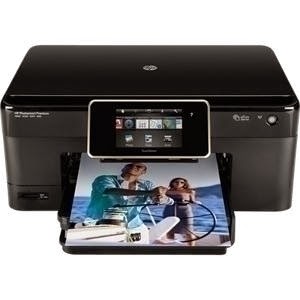
Download HP Photosmart C310 Driver for windows 8, windows 7 and mac. The HP Photosmart Premium e-All-in-One has print speeds of up to 33 pages per minute black and 32 ppm color and integrated wireless 802.11b/g/n.
You can produce lab-quality photos from your cameras memory cards and enjoy printing speeds up to 16 seconds for a color 4.0 x 6.0inch/102 x 152mm photo in Draft mode. You can print on a variety of types of papers, up to 8.5 x 14.0inch/legal size, and print borderless photos up to 8.5 x 11.0inch/letter size at speeds up to 11.0 pages per minute in black and 8.0 pages per minute in color in Normal mode.
hp4driver.com provides full feature driver and software for HP Photosmart C310 Series. Select the driver that compatible with your operating system.
Windows Operation System :
- Windows 8.1 32 & 64 bit
- Windows 8 32 & 64 bit
- Windows 7 32 & 64 bit
- Windows XP 32 & 64 bit
- Windows Vista 32 & 64 bit
Mac OS X Operation System :
- Mac OS X Yosemite v10.10
- Mac OS X Mavericks v10.9
- Mac OS X Mountain Lion v10.8.5
- Mac OS X Lion v10.7
- Mac OS X Snow Leopard v.10.6.8
- Mac OS X Leopard v10.5.8
- Mac OS X Tiger v10.4
Installation Guide
- When the download is complete and you are ready to install the files, click Open Folder , and then click the downloaded file. The file name ends in .exe.
- You can accept the default location to save the files. Click Next, and then wait while the installer extracts the files to prepare for installation.
- When the Install Wizard starts, follow the on-screen instructions to install the software.
Uninstal Guide
- Open Control Panel then click Unistall a Program Doubleclick on the printer you want to unistall, and then click yes
- When the uninstall wizard end, click finish
Download HP Photosmart C310 Series Driver
- Download HP Photosmart C310 Series Driver Windows 8.1
- Download HP Photosmart C310 Series Driver Windows 8
- Download HP Photosmart C310 Series Driver Windows 7
- Download HP Photosmart C310 Series Driver Windows XP
- Download HP Photosmart C310 Series Driver Windows vista
- Download HP Photosmart C310 Series Driver Mac OS X
Available link for download
Saturday, July 30, 2016
Cara mudah memperbaiki warna tinta printer yang tidak muncul
Cara mudah memperbaiki warna tinta printer yang tidak muncul
Berbagi ilmu - Met pagi gan, pagi yang mendung gan dan bikin ngantuk hihi, namun karena mendung admin malah dapet ilmu baru nih gan, emang apa sii ? ada deh hihi. ya udah admin kasih tau yah , kali ini admin akan memposting dan membahas sebuah artikel yang mungkin akan sangat berguna bagi anda yang memiliki sebuah printer. lho kok cuman buat yang punya printer ??? iya dong kan emang pada artikel ini yang akan kita bahas adalah tentang Cara mudah memperbaiki warna tinta printer yang tidak muncul. Judul macam apa ini hehe .... dan apa masksud nya kok engga mau muncul warna nya?? pasti bakalan banyak yang bertanya nih, maka dari itu langsung tak kasih contoh nya nih.


Tuh gan lihat gambar diatas yah, itu foto dari hasil printer admin yang lama tak di pakai, salah satu warna yang ada pada daftar ternyata engga muncul, yang tidak muncul adalah warna Magenta alias merah gan. Normal nya kan warna printer yang muncul adalah hitam,biru,magenta dan kuning. nah disitu yang muncul cuman hitam,biru dan kuning gan. terus bagaimana cara memperbaiki nya ??? simak ulasan admin di bawah ini.
1. Langkah pertama yang harus anda lakukan adalah buka Canon My printer.
2. Kedua pilih Printer Settings.
3. Lalu pilih Pembersihan Tingkat Dalam.
4. Pilih pada Semua Warna lalu klik Laksanakan.
5. Tunggu hingga proses pembersihan selesai.dan jangan lakukan proses apapun selagi proses pembersihan berlangsung.
6. Setelah proses pembersihan selesai, langsung kita pilih Pemeriksaan Mulut Semprot.
7. Tunggu hingga proses selesai dan samakan dengan pola pencetakan tersebut, jika pola pencetak yang ada pada kertas seperti pada bagian kiri maka printer sudah normal, jika pencetak pada kertas seperti pada bagian kanan maka ulangi pembersihan tingkat dalam hingga benar benar tercetak pola pada sebelah kiri.
8. Dan ini adalah hasil yang admin dapatkan dengan menggunakan cara diatas (sorry camera handycam gan ,,gelap haha). semoga berguna.
HAPPY BLOGGING
Sumber : KURNIA ADITAMA (STMIK AMIKOM PURWOKERTO)
Available link for download
Friday, July 29, 2016
HP printer only prints the first copy of multiple copies
HP printer only prints the first copy of multiple copies
Problem:
HP printer only prints the first copy of multiple copies, it doesnt matter how many copies were set on.
Solution:
Remove printer driver, then install a new one.
In this case it was the HP Photosmart D7160 Windows XP driver.
In other cases, and different printer type:
Click Devices and Printers
Right click your Laserjet Printer
Select Printer Properties
Click the Device Settings Tab
Scroll down to the bottom
If necessary, expand Installable Options
Click on Mopier Mode
Select Disable in the selection box that appears
Click Apply
You will now get multiple copies.
Sources:
e3fi389
HP forum
Available link for download
Subscribe to:
Posts (Atom)