Showing posts with label mode. Show all posts

Wednesday, September 28, 2016

How To Enable Night Mode In Windows 10

How To Enable Night Mode In Windows 10


How To Enable Night Mode In Windows 10
Windows 10 has now lots of secrets that are hidden from us, but we are still looking for that. As we know, Windows 10 has been released on July 29. So, not a long time is ago now and weve found some awesome secrets that are useful and amazing too. Today, in this article Im gonna show you also a very useful secret of this revolutionary operating system for those users who use their computers late at night.

As you can understand by reading the title and can think what Im gonna talk about in this article. Night mode is really a best and useful feature. but remember its not provided officially in Windows 10. Weve enable this feature own. By enabling this feature, everything will become dark in Windows 10. So due to the darkness, rays of light will become dim and from this way no one will disturb by using your computer.

Read More: How To Disable Night Mode In Windows 10?

How To Enable Night Mode In Windows 10?

So guys heres how can you enable night mode in Windows 10. I tried to explain the steps finely but some steps may be quite difficult for you. Follow them perfectly so that you dont have to face any trouble.

To enable night mode, here you need to edit two Windows registry keys. So to edit first key, open your Run by pressing Windows + R buttons then type regedit in it and press the Enter.

How To Enable Night Mode In Windows 10
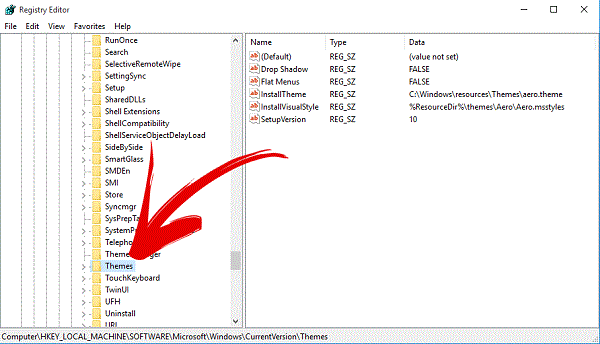
Once youve opened Registry Editor then navigate the following keys.
HKEY_LOCAL_MACHINESOFTWAREMicrosoftWindowsCurrentVersionThemes
How To Enable Night Mode In Windows 10
After that, when youve found Theme folder then right click on it and create a new key.

How To Enable Night Mode In Windows 10
Read More: How To Disable Action Center In Windows 10?
Set this key a name as Personalize.

How To Enable Night Mode In Windows 10
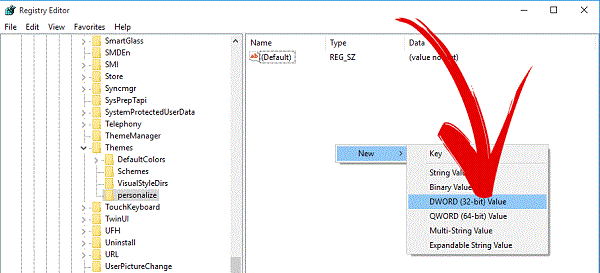
When once the key created then select it and right-click in right pane then select New and DWORD (32-bit) Value.
How To Enable Night Mode In Windows 10
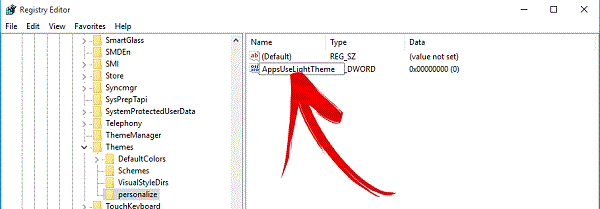
After that action, a DWORD key will create. So also give a name to this value AppsUseLightTheme
How To Enable Night Mode In Windows 10
Read More: Windows 10 Personal Assistant (Review)
Now your first Registry key has been edited and now you need to edit another registry key. So to do that, again open your Run and type regedit in it and click on OK.

How To Enable Night Mode In Windows 10
When the Registry Editor opened then navigate the following keys.
HKEY_CURRENT_USERSOFTWAREMicrosoftWindowsCurrentVersionThemespersonalize

How To Enable Night Mode In Windows 10
When you reached to the Themes folder at once then just click on it. A drop down will open, here search for Personalize folder. In case, if its not there then create it yourself and dont forget to set it as name Personalize. After all, click on Personalize and then right click on right pane and create a new registry key by following this New>DWORD (32-bit) Value.

How To Enable Night Mode In Windows 10
Read More: New Keyboard Shortcuts Of Windows 10
When this key has been created then give it a name AppsUseLightTheme.

How To Enable Night Mode In Windows 10
Everything has been done. Reboot now your operating system and check. Dark mode has been enabled in your Windows 10. Enjoy it!

Available link for download

Read more »

Tuesday, September 20, 2016

Call Of Duty Black Ops 3 Zombie mode

Call Of Duty Black Ops 3 Zombie mode


Call Of Duty Black Ops 3


cod-black-ops-3-zombies-shadows-of-evil-1.jpg
The zombie mode is now well established in the Call Of Duty series and the Black Ops 3 this continues with the Shadows of Evil fashion that we discover in video.

This is the Comic-Con in San Diego that Treyarch now presents its cooperative mode with an action-packed story mode as indicated Mark Lamia, studio head:
"Treyarch has created a totally unique and incredible gaming experience for our loyal community of Zombies in Call of Duty: Black Ops III: Zombies - Shadows of Evil. The development team has completed Shadows of Evil with more gameplay and fun that no other experience before and has a deep and full narrative twists, played by wonderful actors, which literally return our fans. "


Call of Duty: Black Ops III: Zombies - Shadows of Evil immerses players in a recognizable world, yet terrifying and strange, and invites them to discover the secrets and challenges left by a dark being who holds their fate in his hands.The Shadow of Evil story is set in the era of film noir of the 1940s and features four characters, the Magician, the Femme Fatale, the detective and the Boxer in a tangled history orchestrated by the mysterious Shadow man. The four characters played by Jeff Goldblum (Jurassic Park, Independence Day), Heather Graham (The Hangover 1-3, Californication), Neil McDonough (Captain America: The First Avenger, Band of Brothers), Ron Perlman (Sons of Anarchy, Hellboy) and Robert Picardo (Star Trek: Voyager, Stargate SG-1) have lent their voice and physical appearance in the game.
For its premiere today, Call of Duty: Black Ops III: Zombies - Shadows of Evil takes over Comic-Con in San Diego with a rich program of activities and events for fans. To give kick off the show, the Zombies will be the focus of a session organized by Syndicate (Tom Cassel), YouTube star and huge fan of the Call of Duty Zombies. The session will consist of current and past celebrities of the series of Call of Duty Zombies created by Treyarch and propose distribution of exclusive items, reveal information about the scenes and the first global overview of Shadows of Evil gameplay.Throughout the Comic-Con, fans can also enter the world of Shadows of Evil through an immersive experience (located at 450 Second Ave. from 14:00 to 22:00 on Thursdays from 12:00 to 20:00 Friday and Saturday) placing them in the middle of an end without Zombies attack that will give them a first glimpse of intertwined stories of survivors at the final resurrection of the Call of Duty Zombies.

Available link for download

Read more »

Friday, September 2, 2016

What Is God Mode In Windows 7 8 or 8 1 10 And How To Enable It

What Is God Mode In Windows 7 8 or 8 1 10 And How To Enable It


What is God mode and How to enable it?
God mode, a hidden secret of Windows operating system. It was introduced first time in Windows 7. After that, its consistently available in Windows 8 or 8.1 and 10. But still yet windows users are not aware from it even I wasnt too. Actually, it works very simple. You can quite imagine from its name "God", means it can do everything. Once you enable God Mode then you can manage Windows control panel in a click. You will be able to customize everything about Windows setting just in one click. Yeah, after that therell no need to go to the different menus or options to customize control panel.

Also Read: How To Disable Night Mode In Windows 10?

The best thing of it, I like the most that it is easy to install and not complicated. Try it once and experience the benefit to use it. Below are the steps to enable, but before that Id like to explain a short definition of God Mode. So heres it.

What Is God Mode?

God Mode is a hidden feature of Windows operating system that is similar to the Control Panel or you can consider it as a brother of Control Panel. In which, all the options of control panel show in a list, as you can see in below image. From this way, you spare your time in opening more options to manage the setting. So, just open the God mode and then do your work in one click.

What is God mode and How to enable it?

How To Enable God Mode In Windows 7, 8 or 8.1 & 10?

Instructions to enable it, are same for all Windows wsers. So no matter which operating system youre using now. Im using Windows 7, so if youre a Windows 8 or 8.1 or 10 user then follow the same procedure below. (Note: Windows Xp and Vista users are not able to use the God Mode feature)

First of all, stay at your desktop and create a new folder on it.

What is God mode and How to enable it?
Also Read: 10 Tips And Tricks That All Windows Users Would Love To Know

Once the folder created then rename it and give a name GodMode.{ED7BA470-8E54-465E-825C-99712043E01C}

What is God mode and How to enable it?
Now God Mode has been created. Simply open it and experience its benefits. Thats it!

What is God mode and How to enable it?
Also Read: How To Paste Any Code or Command In Cmd By Using CTRL+V?

Conclusion

God Mode is the best opportunity to spare your time. Because in the God Mode all the options of Control Panel available in a form of list. Thats why, you have no need to find folders and menus to customize Control Panel setting. Hope, this article is helpful for every Windows users. If you think, its really helpful then dont forget to share with others. Share your views about the God Mode via comment below.

Available link for download

Read more »

Sunday, July 31, 2016

How To Disable Night Mode In Windows 10

How To Disable Night Mode In Windows 10


How To Disable Night Mode In Windows 10
My last article was to enable night mode in Windows 10 and now today here Im writing to disable it. Hope, youve tried this secret feature of night mode in Windows 10. If didnt yet then visit there my previous article How To Enable Night Mode In Windows 10?. In which, I totally discussed about night mode in Windows 10 and shared a procedure to enable it. But if youve tried already and wanna disable it then heres how can you do it.

Yesterday, I received an email. In which, a fan of our blog was asking to disable this feature. So, I felt that its also necessary to share procedure to disable it. So, if youre also that user who wanna disable this feature then follow below. A complete procedure is explained to disable night mode feature in Windows 10.

Read More: How To Enable Night Mode In Windows 10?

How To Disable Night Mode In Windows 10?

To disable night mode feature, you have to edit two registry keys. To edit first key, first open the Run by pressing Window + R and type Regedit and press the Enter.

How To Disable Night Mode In Windows 10
After to do that, now Registry edit will be opened. Here navigate the following keys.
HKEY_LOCAL_MACHINESOFTWAREMicrosoftWindowsCurrentVersionThemesPersonalize

How To Disable Night Mode In Windows 10
Once you navigate then click on Personalize and find a key AppsUseLightTheme at right pane. When you got at once then right click on it and then delete.

How To Disable Night Mode In Windows 10

Read More: How To Disable Action Center In Windows 10?

Your first registry key has been edited and now you need to require second key. To edit it, again open Run by pressing Window + R and type regedit here and press the Enter.

How To Disable Night Mode In Windows 10
Navigate the following keys like above.
HKEY_CURRENT_USERSOFTWAREMicrosoftWindowsCurrentVersionThemespersonalize

How To Disable Night Mode In Windows 10
Now click on Personalize and find a key thats named AppsUseLightTheme. When you found then right click on it and then delete it. Thats it!

How To Disable Night Mode In Windows 10

Read More: Tips To Disable And Configure Automatic Updates In Windows 10

Last Words

So this is what that I shared after a request from our visitor. Dark mode is a hidden feature of Windows 10 thats not officially provided by Microsoft. But we can enable it own. But remember by enabling dark mode, there isnt a big difference, you will see. Its workable for a specific folders and menus like control panel etc etc. So, try it, I mean enable it at once by following the steps in this article How To Enable Night Mode In Windows 10?. After try it, if ever want to disable it, then follow the above steps.

Give your views about it through comment section below and dont forget to share it with other Windows 10 users.

Available link for download

Read more »